Quick start guide
This quick start uses Divi 5 (Archive Loop or Loop Builder). Divi 4 would be the same as the archive loop method but the module would look slightly different.
Overview
Create a simple filter for WordPress posts that lets visitors search by text and refine by category. Choose one of two methods to display results: Archive Loop or Divi Loop Builder.
Jump to a method
Prerequisites
- Divi Ajax Filter installed, activated, and licensed.
- Divi Theme or Divi Builder 5.0.0 or newer.
- Published WordPress posts with categories and featured images.
- Basic familiarity with the Divi 5 Visual Builder interface.
Method 1: Archive Loop
Use the Archive Loop module to display the filtered posts.
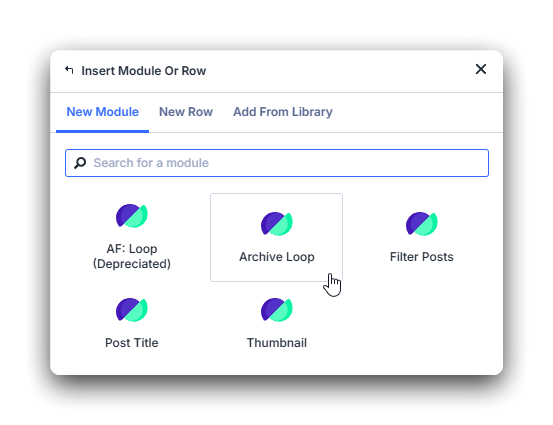
Step 1: Add an Archive Loop for results
- Create or open a page in the Divi 5 Visual Builder.
- Add a Row with two columns—one for filters and one for results.
- In the results column, insert the Archive Loop module.
- In Archive Loop settings, set the Post Type to be Posts or any CPT you want to display or filter.
- Set Posts per page, Order, and Order by to match how you want the list to appear.
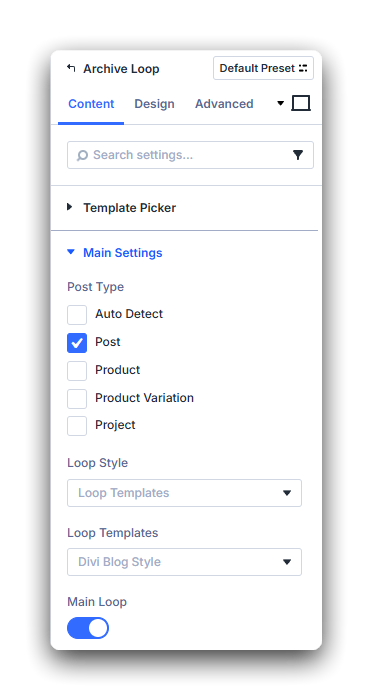
Step 2: Add the Filter Posts module
- In the filter column, add the Filter Posts module.
- Open Filter Posts settings.
- Set Filter Post Type to Post so the filter targets the same content as the Archive Loop.
- Set Filter Update Method to match how visitors should apply filters:
- On button click — update results when the visitor clicks Filter or Search.
- On change — update results as soon as a filter value changes.
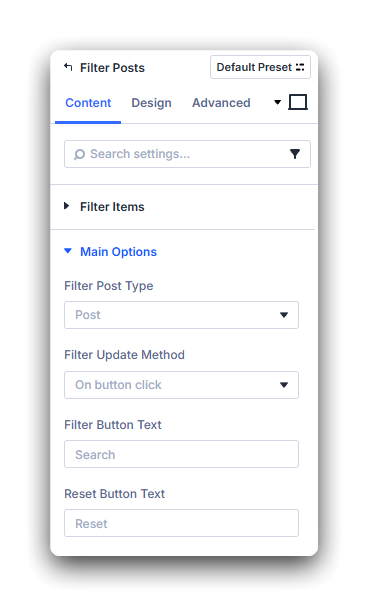
Step 3: Add text and category filters
- In Filter Posts, add two filter items:
Search text: provides a free-text search across your posts & post content.
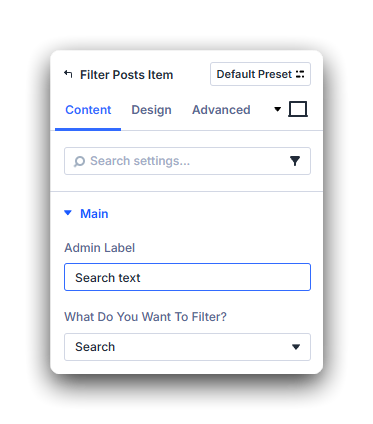
Category: displays a list of categories based on post type Categories.
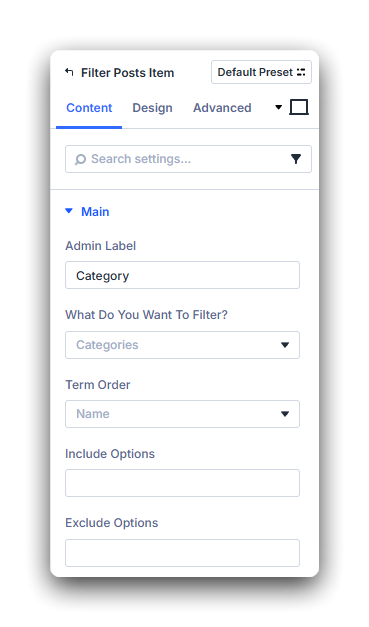
- Leave other options at defaults for now.
- Save the module.
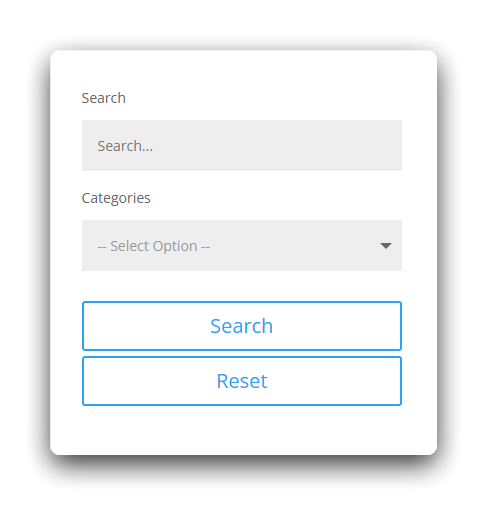
Step 4: Test the page
- Save the layout and view the page on the front end.
- Type a keyword into Search and select one or more Categories.
- Confirm that results update without a page reload and that pagination (if enabled) remains in sync.
Tip: If no posts match, check your category selections or try a broader search term.
Method 2: Divi Loop Builder
Use a custom Loop Builder layout to render the filtered list of posts. This method requires a little more work to get started as you need to build the Loop Layout yourself.
Step 1: Turn on a Loop Builder layout for results
- Open your target page in the Divi 5 Visual Builder.
- Add a Row or Section that will hold the filtered post list.
- Select that container and open its settings.
- In the Content tab, open the Loop group.
- Turn Loop Element On.
- Set Post Type to Posts (or the post type you want to filter).
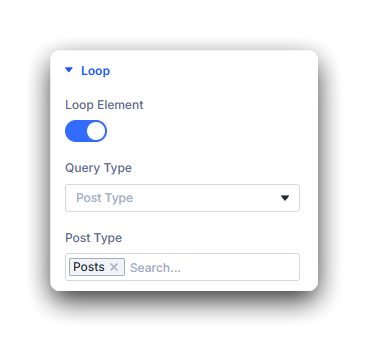
Step 2: Design the loop item layout
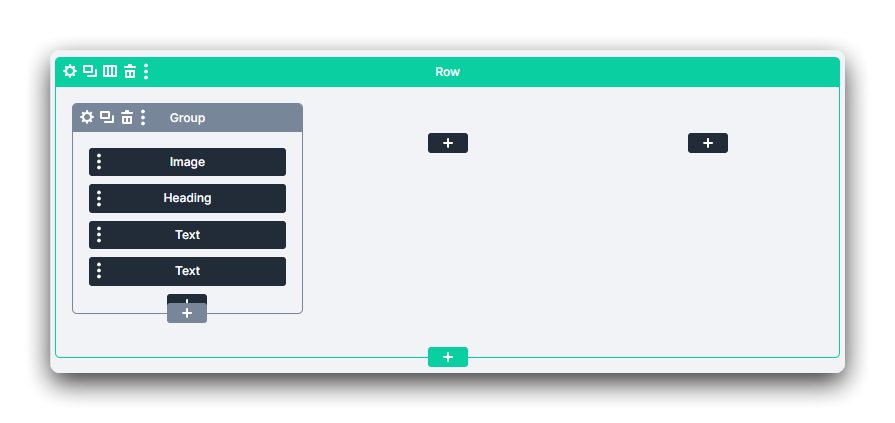
- Inside the loop container, add modules that represent one post in the list.
- Example: Image, Heading, and Text for a simple card layout.
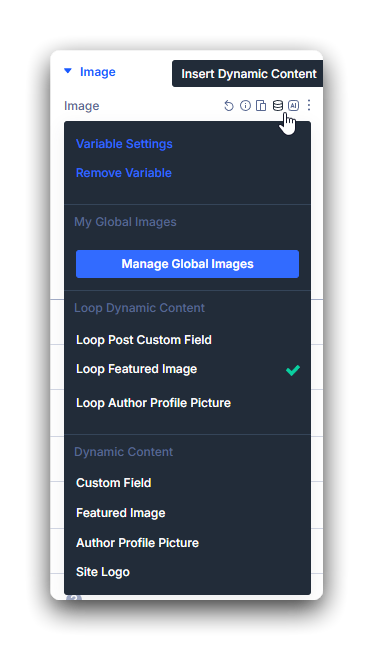
- Connect each module to post data with Dynamic Content:
- Image → Featured Image
- Heading → Post Title
- Text → Post Meta, Excerpt, or another field you want to show.
- Style spacing, typography, and colors so the repeating item looks right on the page.
Step 3: Add the Filter Posts module
Add the filter module the same way as in Method 1: Archive Loop.
- In the filter column, add the Filter Posts module.
- Open Filter Posts settings.
- Set Filter Post Type to Post so the filter targets the same content as your loop.
- Set Filter Update Method to match how visitors should apply filters:
- On button click — update results when the visitor clicks Filter or Search.
- On change — update results as soon as a filter value changes.
Step 4: Add text and category filters
- In Filter Posts, add two filter items:
Search text: provides a free-text search across post content.
Category: displays a list of categories based on post type Categories.
- Leave other options at defaults for now.
- Save the module.
Step 5: Test the page
- Save the layout and view the page on the front end.
- Type a keyword into Search and select one or more Categories.
- Confirm that results update without a page reload and that pagination (if enabled) remains in sync.
Tip: If no posts match, check your category selections or try a broader search term.
What’s next
- Empty filter options — Handle no-result and empty choice states
- URL sync and shareable filters — Bookmark and share filtered views
- Filter item settings — All filter item options and operators