Custom Field Item conditional logic
Watch This Video
Introduction
Follow these steps to set up Custom Field Item conditional logic.
Step 1: Custom Field Item
Add the Custom Field Item module to your Single Post Template in the Theme Builder or to a Custom Loop Layout.
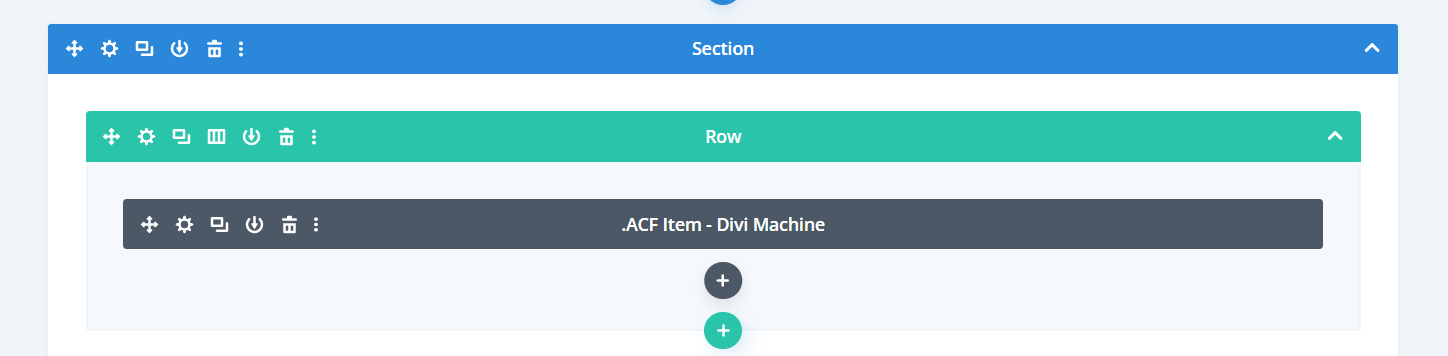
Step 2: Create Your Condition
The Custom Field Item has a number of conditional options defined below. Please read through them and create your own condition where needed.
Option 1: Visibility & Empty Value Condition
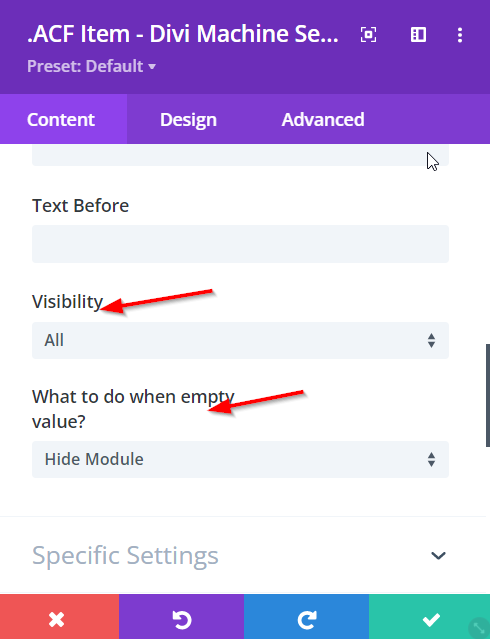
The first two types of conditions that you will encounter in the Custom Field Item are Visibility and Empty Value logic.
- Visibility defines who can see the field, at the moment we have All and Logged in users.
- Empty Values allows you to define what happens to an empty field. You can hide the module, hide the parent row and this module, among other options.
To find these conditions, go to the Main Options of the Custom Field Item.
Option 2: Hide Another Element & This Module
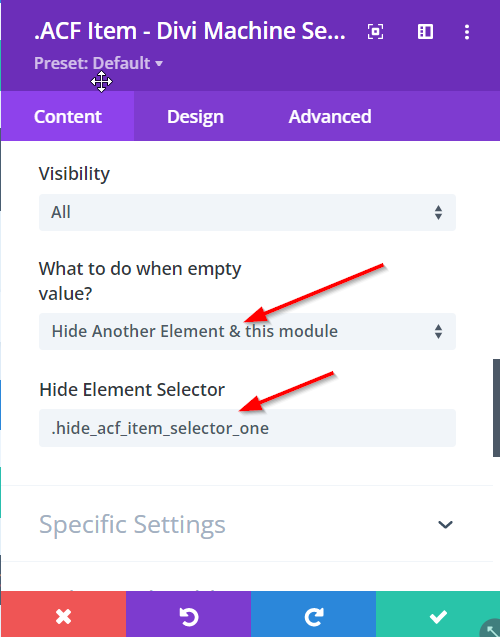
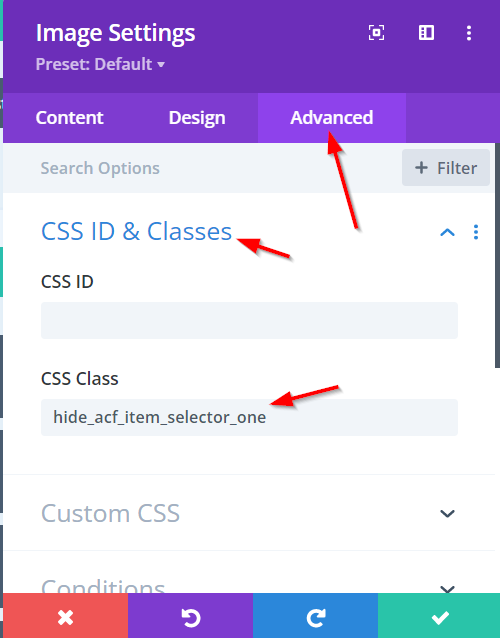
If you would like to hide another element on the page and this module then first you will need to assign a Hide Element Selector to the module. Enter in a completely unique string of characters, as you see in the image below, into the space provided. Make sure to add a period in the beginning since this will be a CSS class. After doing this, go to the module on this page that you would like to hide if this value is empty and add this exact CSS class to it. For example, in my example below I add this CSS class to an image that I would like to hide if the Custom Field Item value is empty.
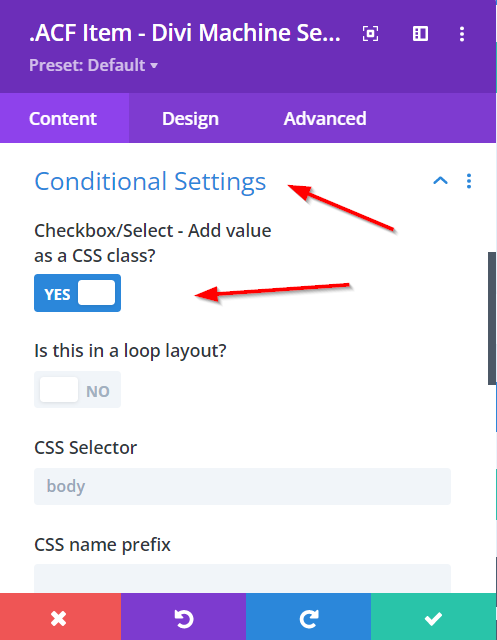
Option 3: Conditional Settings - Add Value As CSS Class
If you would like to add a field value as a CSS class to the page then you enable the button. This Custom Field Item will need to be either a Checkbox or Selector with predefined field options. What will then happen is that when the user selects either of the Checkbox items, for example, the Custom Field Item module will then activate that value as a CSS class name. You can then create CSS and add it to a selector of the Checkbox values. The options below this button are to add more CSS to the field values, such as a body tag. Please enable the "Is this in a loop layout?" button if this Custom Field Item is in a custom loop layout.
Option 4: Conditional Settings - True/False
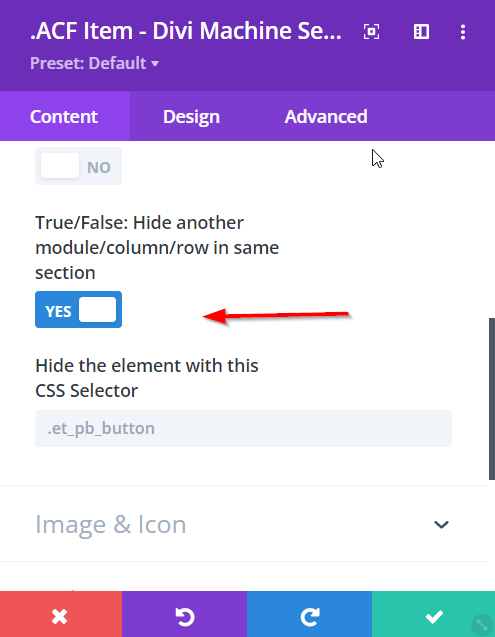
If you would like to hide an element in the same section as this Custom Field Item you can do so using the True/False button in the Conditional Settings section.
- First, you will need to create a True/False field as True and False.
- Next set your posts and either TRUE or FALSE.
- Then enable the button in Conditional Setting.
- Lastly, define the CSS Selector of the element in the same section.
Now, those posts with TRUE will hide the element in the same section as the Custom Field Item and those posts with FALSE will not.