ACF Map One Pin
Introduction
Follow these steps to add a unique map to each of your posts of one custom post type.
On Divi 5, bind the Map, Map Pin, or Fullwidth Map module to your map-type custom field using Divi’s Insert Dynamic Content on the module’s location fields. That is the supported path for new builds. See Native modules and dynamic content for context. The steps below include a legacy Machine settings option for older workflows only.
Step 1: Create Map Custom Field
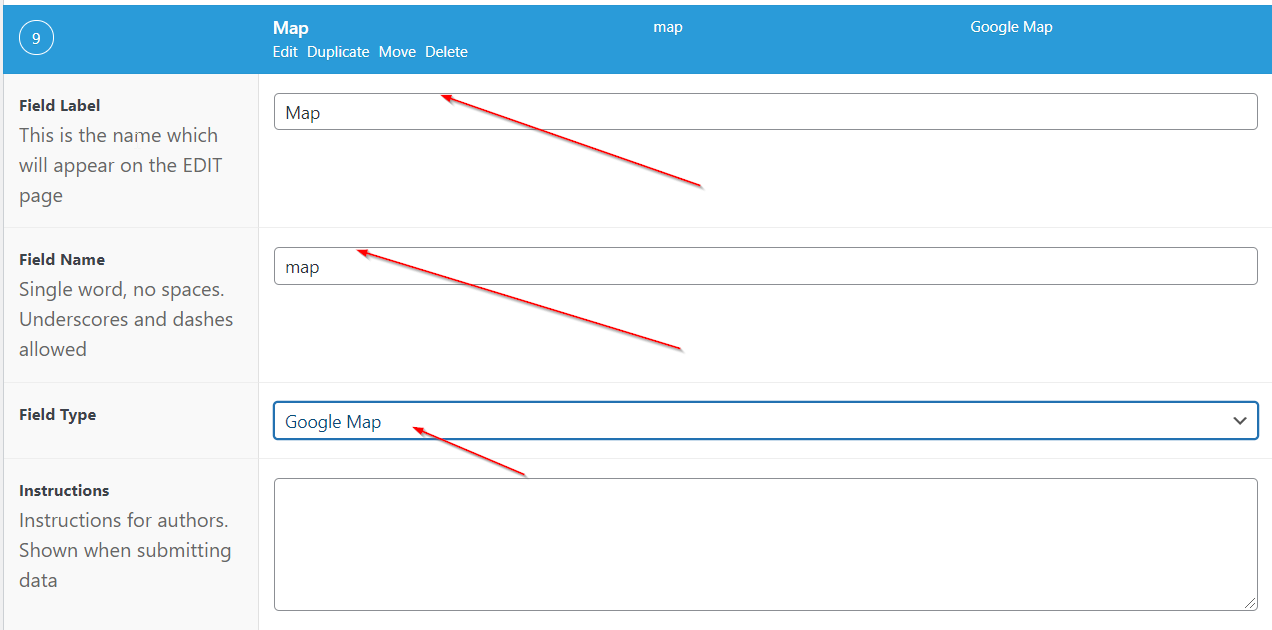
Go to ACF, find the Field Group of your choice and create a map field.
Step 2: Add An API Key
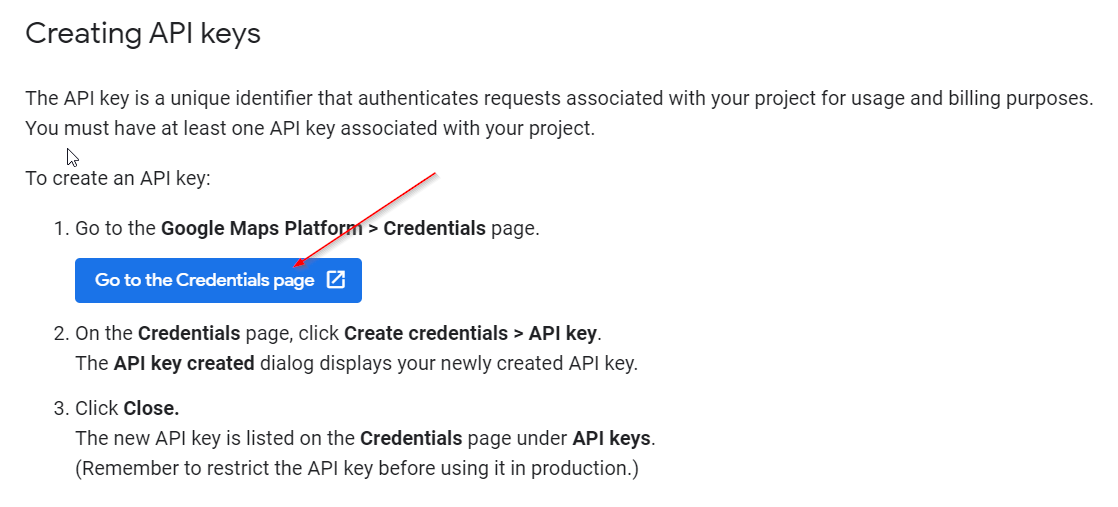
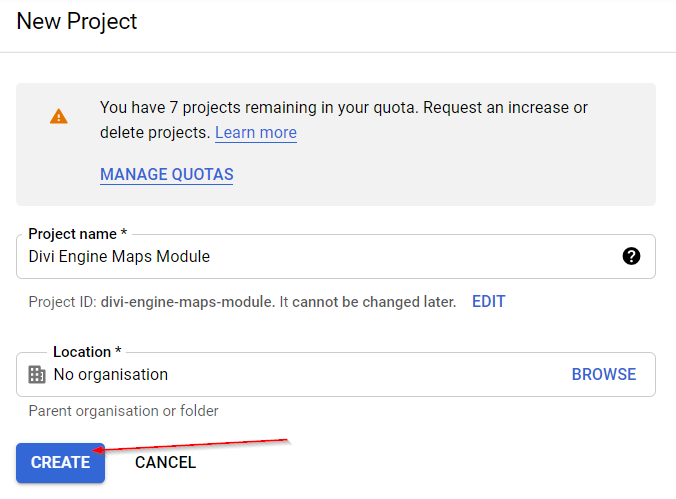
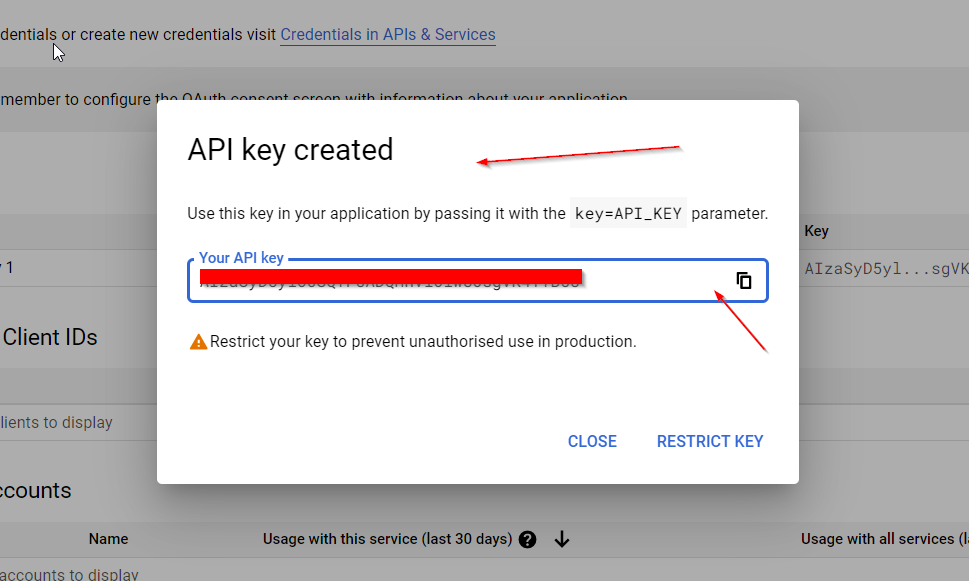
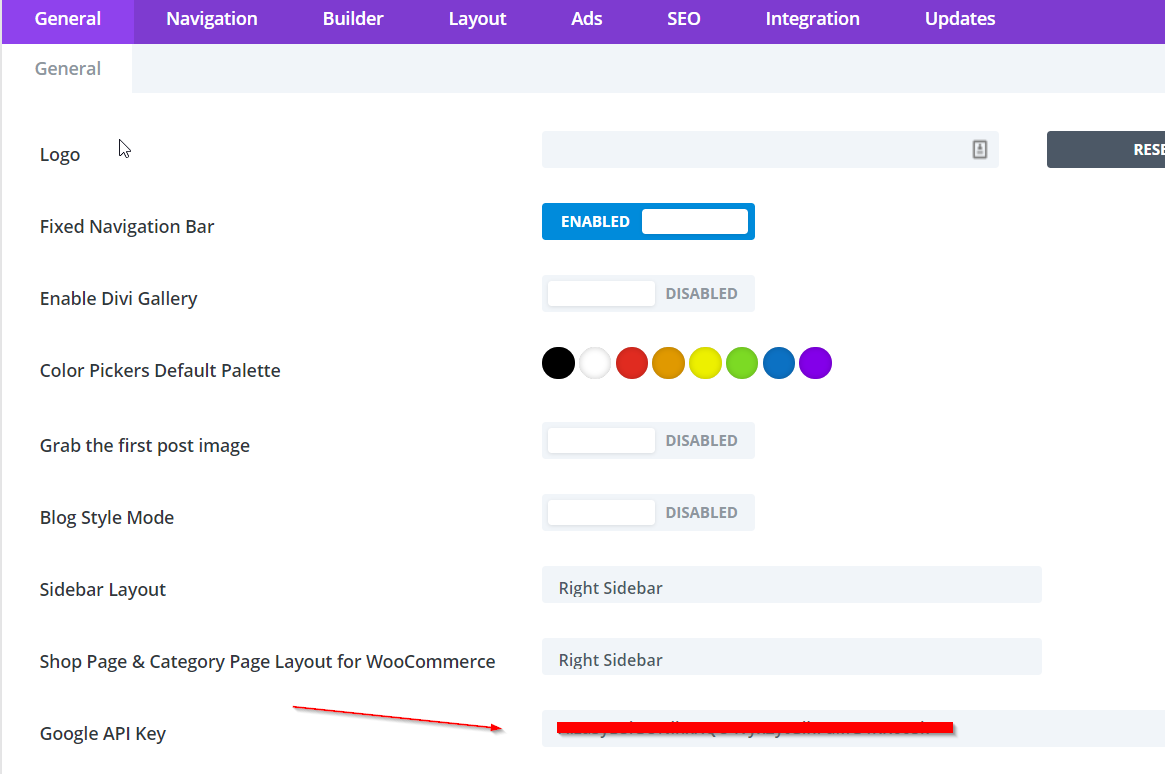
Go to Google Maps Platform and click on the credentials page. From there you will need to create a project and add the following APIs: Maps JavaScript API, Geocoding API and Places API. After this, you will be able to create an API key. Copy and paste this key into Divi > Theme Options > General.

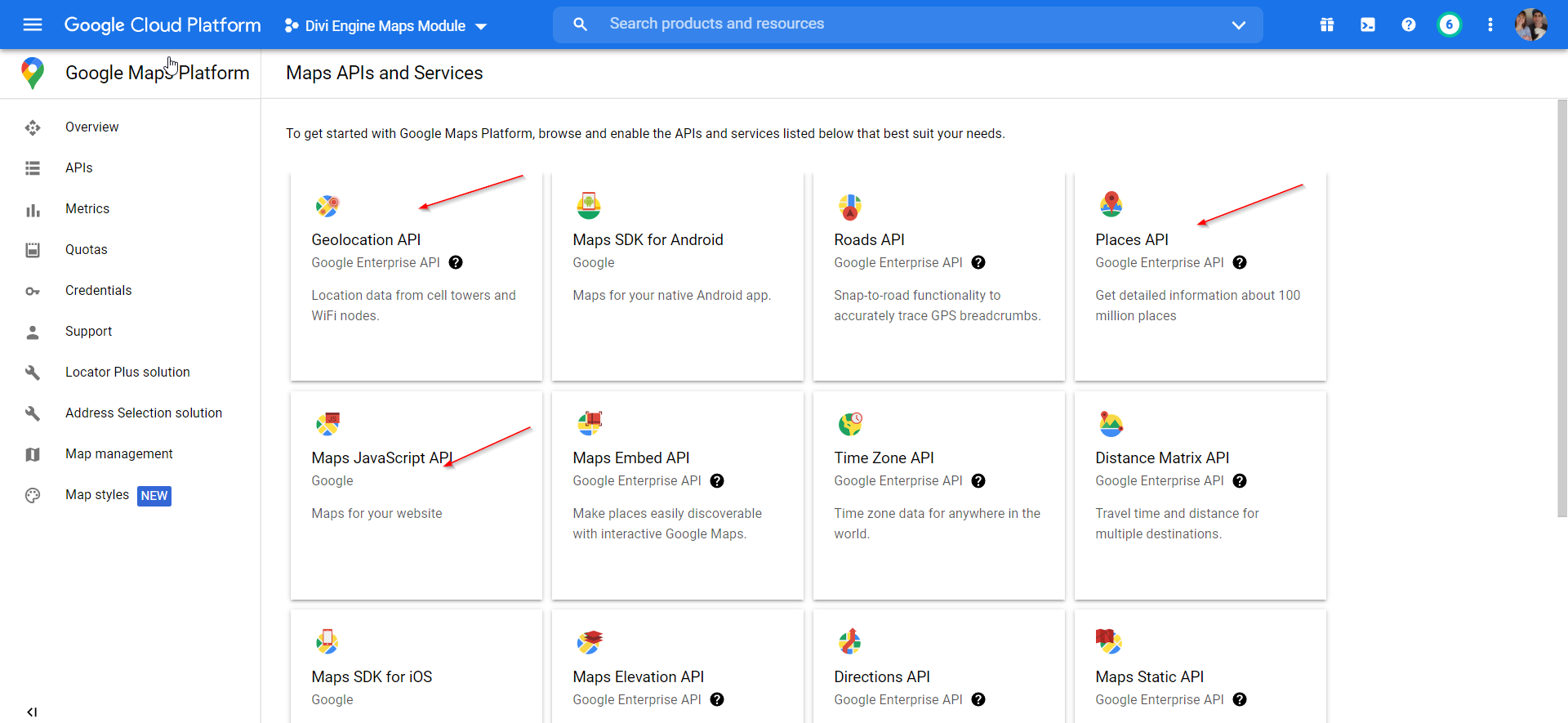
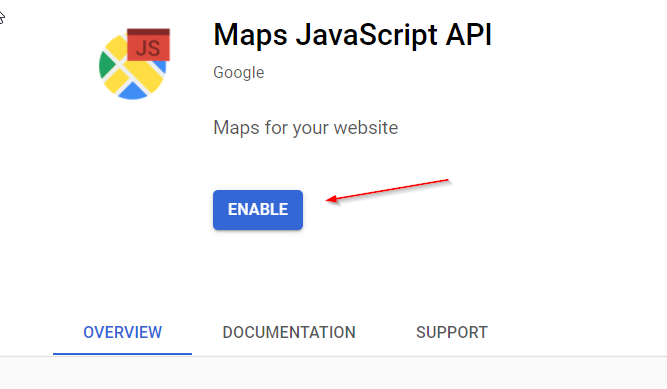
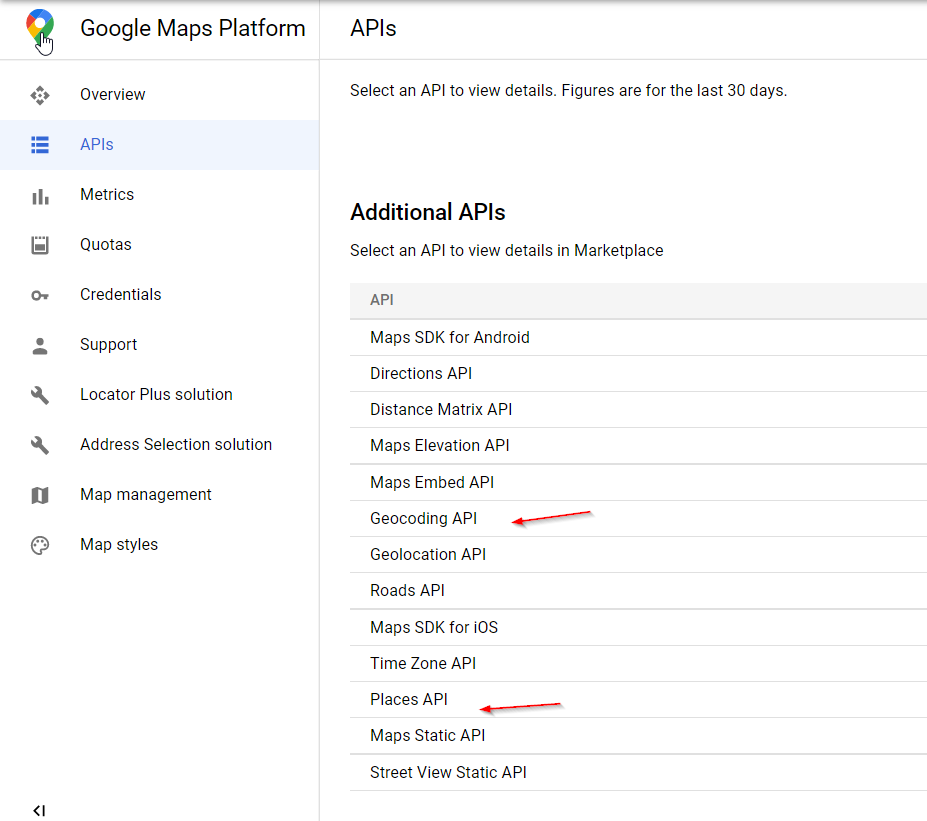
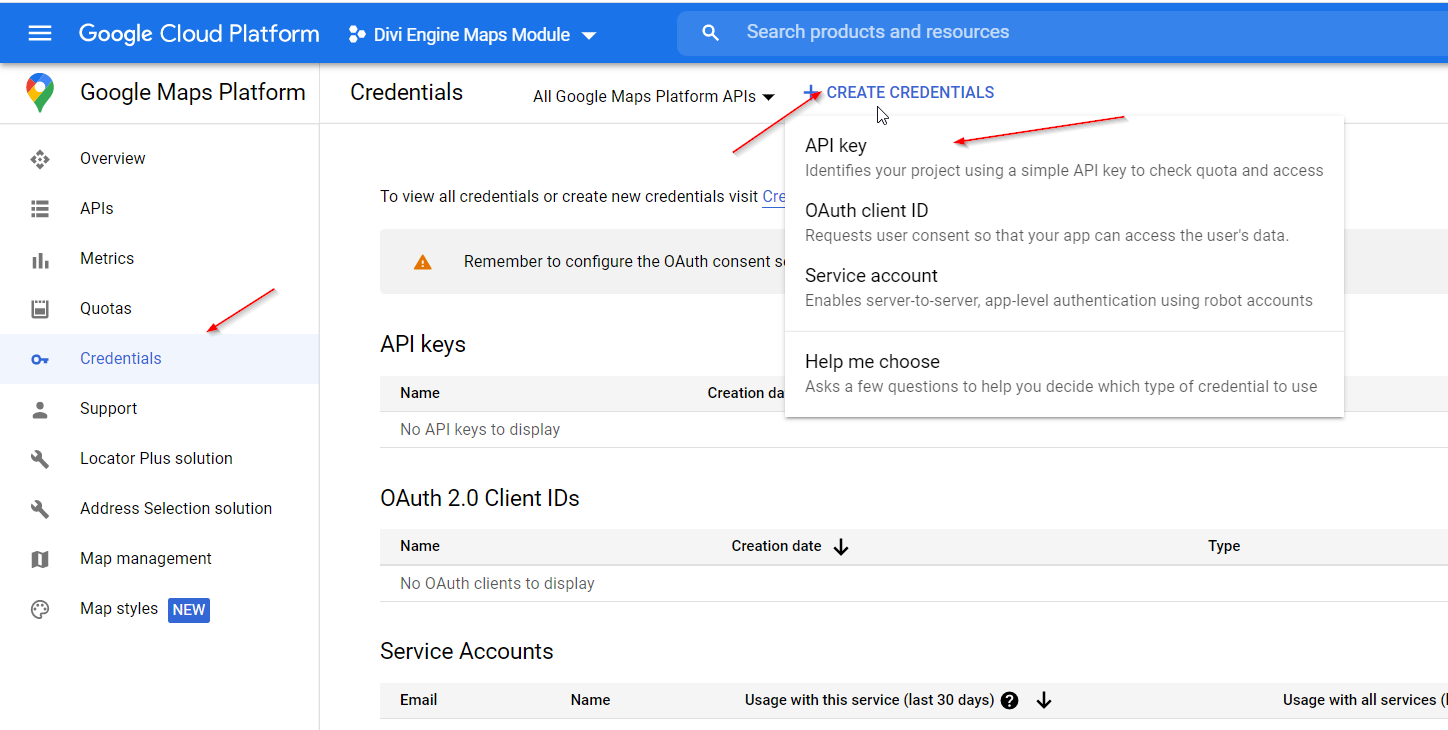
Step 3: Test Your API Key
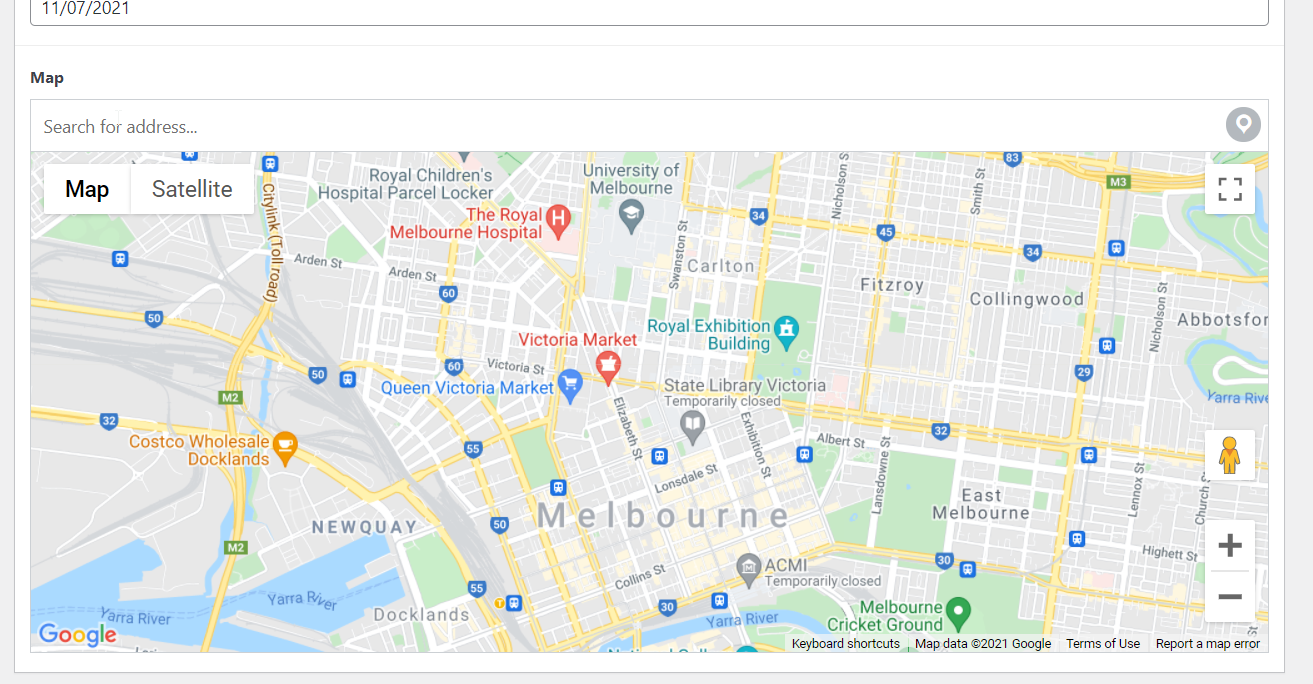
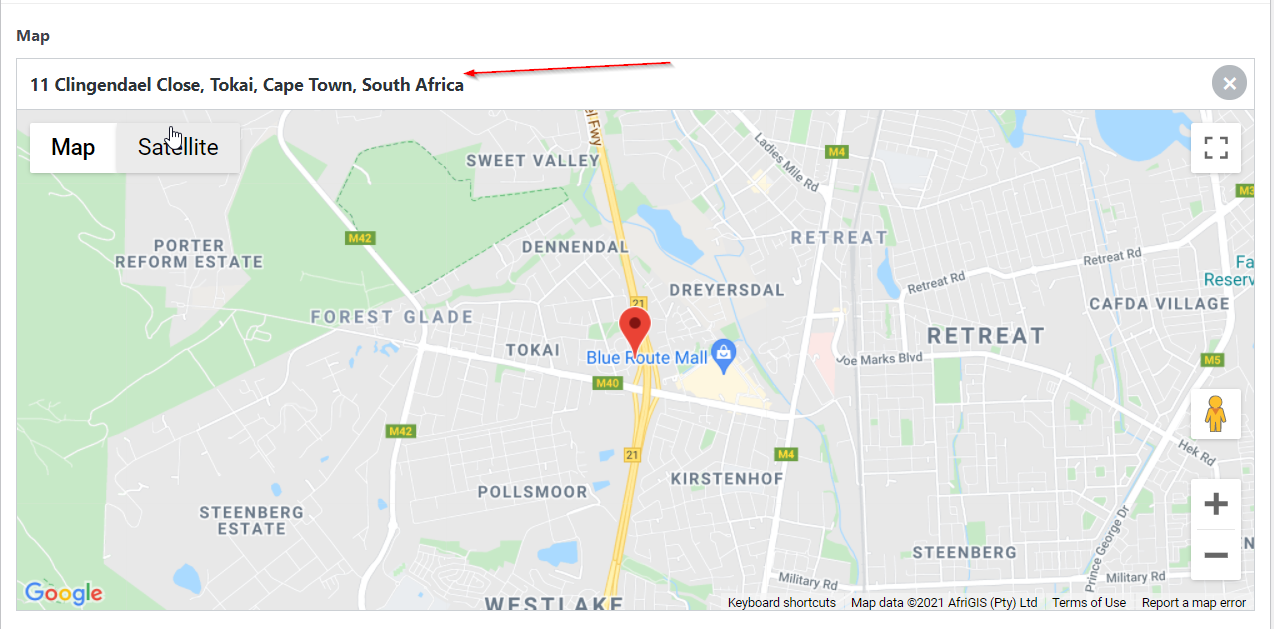
If you have done this correctly, then in your post you should see a live preview of Google Maps in the Map field.
Step 4: Wire the map field to the Divi Map module
Divi 5 (recommended)
- Open your Theme Builder template for the single post type.
- Add Map (or Map Pin / Fullwidth Map).
- On the module fields that control the pin location, open Insert Dynamic Content and choose your Google Map (or compatible) field for the current post in context.
Each template explicitly declares which field feeds the map. You do not need Machine → Settings → Module overrides for this path.
Legacy — Machine settings global merge (Divi 4 era)
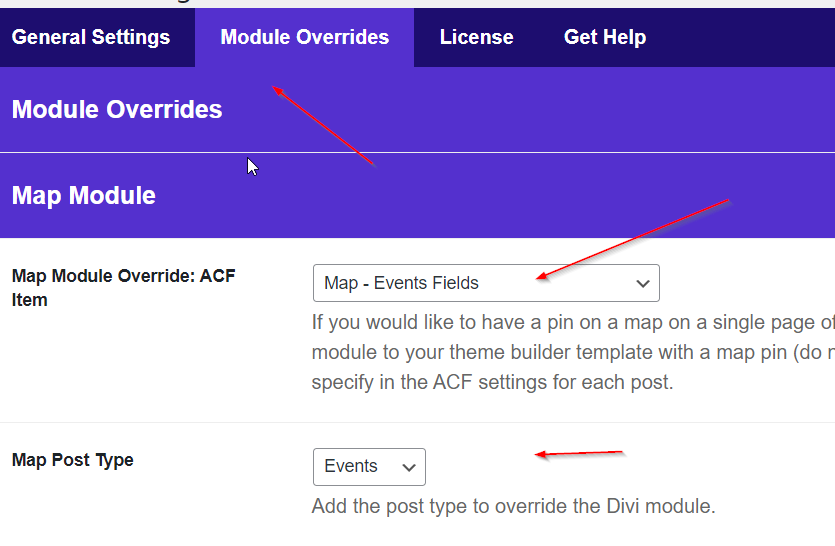
Older documentation used Divi Engine → Machine → Settings → Module overrides to assign a default map field and post type. That option can still merge coordinates at render time when configured and the viewed post matches the selected post type, but prefer Insert Dynamic Content on the Map module for Divi 5 so layouts stay self-contained.

Step 5: Add An Address
Then go to your posts and add an address into the space provided.
Step 6: Build Your Page
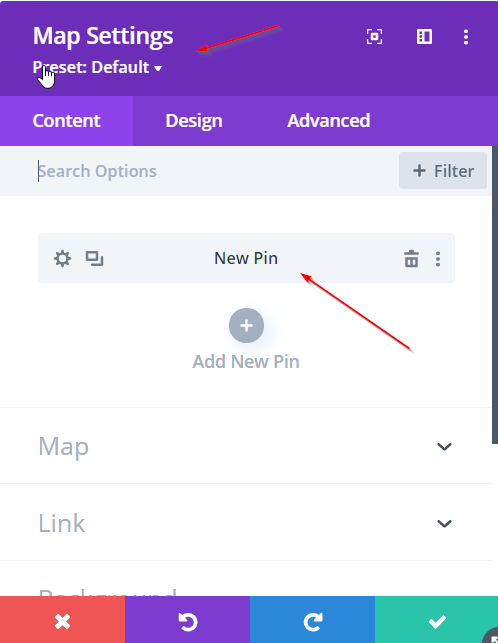
Now it is time to add the Divi Map Module to your single post page template built in the Divi Theme Builder. Add the Map module and one pin.
Step 7: Adjust The Map Zoom
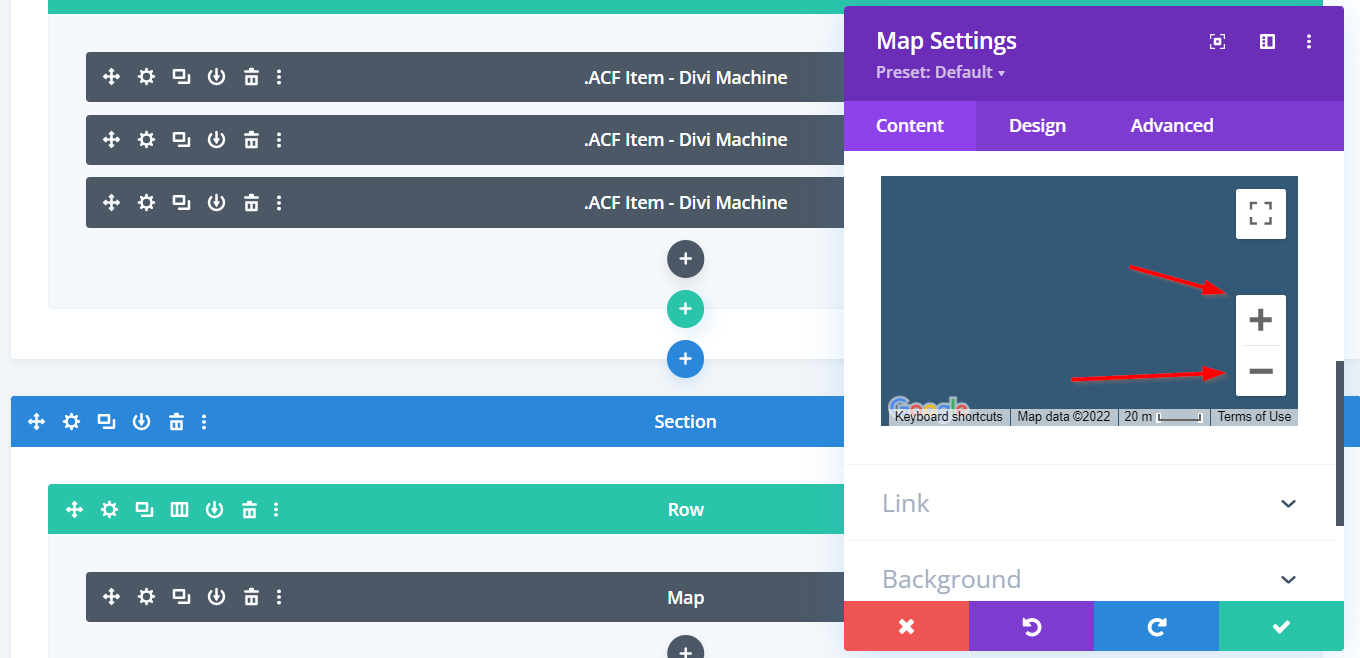
Using the + and - signs, adjust the map zoom level to the height of your choice, then save your page.