Select2 Enhanced Dropdowns
This feature guide assumes Divi 5 (Filter Posts in the Visual Builder). On Divi 4, related options exist in the classic module UI—see Divi 4 modules and the FAQ.
Overview
Select2 transforms standard HTML dropdown filters into enhanced, searchable select boxes with modern styling and keyboard navigation. Instead of scrolling through a long list of options, users can simply type to search and quickly find what they're looking for.
This is especially valuable for filters with many options such as product categories, tags, or custom taxonomies where standard dropdowns become cumbersome and difficult to navigate.
Select2 dramatically improves user experience for filters with 10 or more options. Users can quickly find what they need by typing instead of scrolling, making filtering faster and more intuitive.
Key Benefits
Select2 enhances dropdown filters with:
Search Functionality
- Type to search within dropdown options
- Instant filtering of visible options
- Highlighted search matches
Keyboard Navigation
- Navigate options with arrow keys
- Select with Enter key
- Close with Escape key
- Full keyboard accessibility
Modern Interface
- Clean, professional appearance
- Customizable styling via Divi Design Tab
- Consistent look across browsers
- Responsive on all devices
Better User Experience
- Reduces scrolling for long lists
- Faster option selection
- Clearer visual feedback
- More intuitive interaction

Prerequisites
Before enabling Select2, ensure:
- Filter Posts Module is added to your page
- At least one filter item with Filter Type set to "Dropdown"
- Filter has options to display (categories, tags, taxonomy terms, etc.)
- Ideally 10 or more options to gain maximum benefit from search functionality
Select2 only works with dropdown/select filter types. It cannot be used with checkbox, radio, slider, or swatch filter types.
How It Works
Select2 uses a two-tiered configuration system that gives you flexible control over which dropdown filters are enhanced:
Two-Level Configuration
Configuration Hierarchy
- Module-Level (Global): Enable Select2 for all dropdown filters at once
- Filter-Level (Per-Filter): Override the global setting for specific filters
- Priority: Individual filter settings always override the global module setting
This design allows you to:
- Enable Select2 globally and disable for specific small dropdowns
- Keep it disabled globally and enable only for large dropdowns
- Mix and match based on each filter's option count
Configuration
Step 1: Global Enable (Module-Level)
This step is Divi 4 only. You don't need to do this in Divi 5.
Enable Select2 for all dropdown filters in your Filter Posts module.
Located in: Filter Posts Module > Content Tab > Main Settings
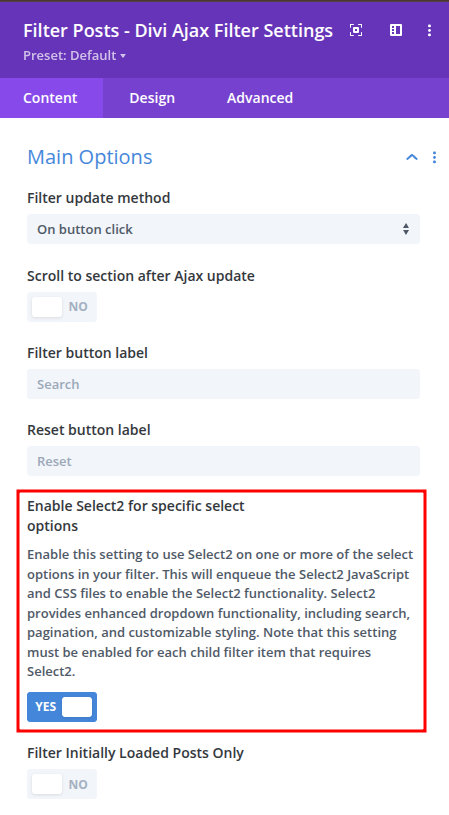
Enable Select2: Apply to all dropdown filters
Toggle this ON to enable Select2 for all dropdown filters in this Filter Posts module.
When to enable globally:
- Most or all of your dropdown filters have 10+ options
- You want consistent enhanced dropdowns throughout
- You prefer opt-out rather than opt-in approach
When to keep disabled:
- Most dropdowns have fewer than 10 options
- You only need Select2 for one or two specific filters
- You prefer to selectively enable per filter
If you have multiple large dropdown filters, enable globally then selectively disable for small dropdowns at the filter level.
Step 2: Per-Filter Enable (Filter-Level)
Enable or disable Select2 for individual dropdown filters, overriding the global setting.
Located in: Filter Posts Module > Content Tab > Filter Item Settings > [Individual Filter] > Select Settings > Dropdown/Select Options
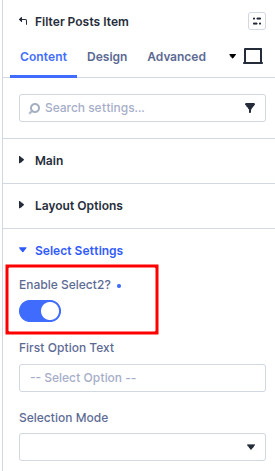
Enable Select2: Override global setting for this filter
Toggle this to enable or disable Select2 for this specific dropdown filter, overriding the global module setting.
This setting overrides the module-level setting:
- If global = ON, setting this to OFF disables Select2 for this filter only
- If global = OFF, setting this to ON enables Select2 for this filter only
When to enable for specific filter:
- This filter has 10+ options while others don't
- Users need search functionality for this particular filter
- This filter contains complex or similar-looking terms
When to disable for specific filter:
- This filter has fewer than 10 options
- Options are very distinct and easy to scan
- You want standard dropdown appearance for this filter
The per-filter setting always takes precedence over the global module setting, giving you complete control.
Common Scenarios
Choose the configuration approach that matches your filtering needs:
Scenario 1: Enable for All Dropdowns (Global Approach)
Best for: Multiple large dropdown filters that all benefit from search
Goal: Enable Select2 across all dropdown filters in the module
Configuration:
Module Settings:
- Enable Select2: YES
Filter Item Settings:
- (No changes needed - all dropdown filters inherit global setting)
Behavior:
- All dropdown filters in the module display as Select2 enhanced dropdowns
- Users can search within every dropdown
- Consistent interface across all filters
Use case: WooCommerce shop with large category list, product attribute filters, and brand filter — all with 15+ options each.
Scenario 2: Enable for Specific Filters Only (Selective Approach)
Best for: Mix of large and small dropdown filters
Goal: Enable Select2 only for dropdowns with many options, keep standard dropdowns for small lists
Configuration:
Module Settings:
- Enable Select2: NO
Filter Item Settings:
- Categories filter (50+ categories): Enable Select2 = YES
- Brands filter (30+ brands): Enable Select2 = YES
- Status filter (3 options): Enable Select2 = NO (leave disabled)
- Stock filter (2 options): Enable Select2 = NO (leave disabled)
Behavior:
- Only large dropdown filters (categories, brands) get Select2 enhancement
- Small dropdowns (status, stock) remain as standard dropdowns
- Users get search functionality only where it's actually helpful
Use case: Product filtering where categories and brands have many options, but status and stock filters only have a few options.
Scenario 3: Enable Globally, Disable for Small Filters (Opt-Out Approach)
Best for: Mostly large dropdowns with a few small exceptions
Goal: Enable Select2 for most filters but disable for one or two small dropdowns
Configuration:
Module Settings:
- Enable Select2: YES
Filter Item Settings:
- Categories filter (60 categories): (Inherits global - Select2 enabled)
- Product Type filter (40 types): (Inherits global - Select2 enabled)
- Brands filter (25 brands): (Inherits global - Select2 enabled)
- Color filter (5 colors): Enable Select2 = NO (override to disable)
- Size filter (4 sizes): Enable Select2 = NO (override to disable)
Behavior:
- Most filters display as Select2 enhanced dropdowns
- Color and Size filters remain standard dropdowns
- Appropriate interface for each filter's option count
Use case: Catalog with extensive categories and brands but simple color/size options that don't benefit from search.
Scenario 4: Hierarchical Category Navigation with Search
Best for: Nested categories or taxonomies with many levels
Goal: Enable Select2 for hierarchical category filtering to make navigation easier
Configuration:
Module Settings:
- Enable Select2: NO
Category Filter Item Settings:
- What to Filter: Categories
- Category Display Mode: All Categories and Sub Categories
- Filter Type: Dropdown
- Enable Select2: YES
Behavior:
- Category dropdown shows parent and child categories hierarchically
- Users can search across all levels to find specific categories
- Search matches both parent and child category names
- Reduces need to expand/scroll through hierarchy
Use case: Multi-level product categorization (e.g., Electronics > Computers > Laptops > Gaming Laptops) where users need to quickly find specific subcategories.
Scenario 5: Custom Taxonomy with ACF Integration
Best for: Custom post types with Advanced Custom Fields taxonomies
Goal: Enable Select2 for custom taxonomy dropdown with many terms
Configuration:
Module Settings:
- Enable Select2: NO
Custom Taxonomy Filter Item Settings:
- What to Filter: Custom Meta (ACF field)
- Field Type: Taxonomy
- Filter Type: Dropdown
- Enable Select2: YES
Behavior:
- ACF taxonomy field displays as searchable Select2 dropdown
- Users can quickly find specific taxonomy terms
- Works seamlessly with ACF field integration
Use case: Real estate site with custom "Location" taxonomy containing hundreds of neighborhoods, cities, or regions.
Implementation Best Practices
When to Enable Select2
Enable Select2 when:
- 10 or more options - Search becomes valuable at this threshold
- Similar-looking options - Search helps distinguish between similar terms
- Hierarchical data - Search across multiple levels is helpful
- Professional appearance desired - Modern interface matches brand standards
Example filters that benefit:
- Product categories (50+ categories)
- Brand lists (20+ brands)
- Location taxonomies (100+ cities)
- Product attributes with many values
- Tag clouds converted to dropdowns
When NOT to Enable Select2
Keep standard dropdown when:
- Fewer than 10 options - Scrolling is faster than typing
- Very distinct options - Easy to scan visually (e.g., "In Stock", "Out of Stock")
- Short text options - Quick to find by scrolling (e.g., "Small", "Medium", "Large")
- Binary choices - Two options don't need search (e.g., "Yes", "No")
Example filters to keep standard:
- Stock status (2 options: In Stock, Out of Stock)
- Product condition (3 options: New, Used, Refurbished)
- Size (4-5 options: XS, S, M, L, XL)
- Simple yes/no filters
Use Select2 for dropdowns with 10 or more options. Below that threshold, standard dropdowns are often faster and simpler for users.
Configuration Strategy
Choose the right approach for your setup:
Global Enable (Opt-Out):
- When most dropdowns are large (10+ options)
- Simpler initial setup
- Selectively disable for small dropdowns
Global Disable (Opt-In):
- When most dropdowns are small
- More control over which filters are enhanced
- Better performance (fewer Select2 instances)
Mixed Approach:
- Complex filtering with varying option counts
- Maximum control per filter
- Requires more configuration
Combining with Other Features
Select2 works seamlessly with other Divi Ajax Filter features:
Empty Filter Options
- Select2 search works with dynamically hidden/shown options
- Empty options can be hidden while maintaining search functionality
- Counts update correctly in Select2 interface
Conditional Filters
- Select2 dropdowns can be shown/hidden based on conditional logic
- Search functionality remains when conditionally displayed
- No conflicts with Logic ID system
Filter Counts
- Display counts alongside Select2 search results
- Counts update dynamically as filters change
- Search includes count information
URL Parameters
- Select2 selections sync with URL parameters
- Shareable/bookmarkable filtered views work correctly
- Deep linking to specific filter combinations
Performance Considerations
For Large Option Lists:
- Select2 handles hundreds of options efficiently
- Search is client-side (instant, no server delay)
- No performance impact on page load
- Smooth scrolling even with 500+ options
For Multiple Select2 Instances:
- Safe to enable on multiple filters simultaneously
- No cumulative performance degradation
- Each instance is independent
- Mobile performance remains smooth
Styling and Customization
Using Divi Design Tab
Select2 dropdowns inherit styling from the Filter Posts module's Design Tab settings:
Typography Controls:
- Font family, weight, and style
- Font size and line height
- Letter spacing
- Text transform (uppercase, lowercase, etc.)
Color Controls:
- Text color
- Background color
- Border color and width
- Hover and focus states
Spacing Controls:
- Padding within dropdown
- Margin around dropdown
- Gap between filters
Located in: Filter Posts Module > Design Tab > Filter Items
Custom CSS Styling
For advanced customization beyond Divi's Design Tab, use custom CSS:
Common customizations:
/* Customize Select2 dropdown background */
.select2-container--default .select2-selection--single {
    background-color: #f8f9fa;
    border: 2px solid #dee2e6;
}

/* Style the search box within dropdown */
.select2-container--default .select2-search--dropdown .select2-search__field {
    border: 1px solid #ced4da;
    padding: 8px;
}

/* Customize highlighted search results */
.select2-container--default .select2-results__option--highlighted {
    background-color: #0073aa;
    color: white;
}

/* Style selected option */
.select2-container--default .select2-selection--single .select2-selection__rendered {
    color: #333;
    font-weight: 500;
}
Add custom CSS in: Divi > Theme Options > Custom CSS or via child theme stylesheet.
Match Select2 styling to your site's design system by adjusting colors, borders, and typography to align with your brand guidelines.
Troubleshooting
Select2 not appearing after enabling
Symptom: Enabled Select2 but dropdown still looks like standard select element
Possible causes:
-
JavaScript not loading
- Check browser console for JavaScript errors
- Ensure no plugin conflicts blocking scripts
-
Cache not cleared
- Clear Divi Builder cache
- Clear WordPress cache
- Clear browser cache
- Purge CDN cache if applicable
-
Filter type not set to Dropdown
- Verify Filter Type is "Dropdown", not Checkbox/Radio
- Select2 only works with dropdown filter types
Solution steps:
- Clear all caches (Divi, WordPress, browser, CDN)
- Verify Filter Type = "Dropdown" in filter item settings
- Check browser console for JavaScript errors
- Disable other plugins temporarily to test for conflicts
- Try in incognito/private browser window
Search not working properly
Symptom: Select2 appears but search doesn't filter options correctly
Possible causes:
-
Special characters in option names
- Certain characters may interfere with search
- HTML entities might not be decoded properly
-
Browser compatibility
- Older browsers may have limited Select2 support
- Test in modern browsers (Chrome, Firefox, Safari, Edge)
Solutions:
- Test in different browsers to isolate browser-specific issues
- Verify option names don't contain unusual characters
- Update to latest version of Divi Ajax Filter plugin
Styling conflicts
Symptom: Select2 dropdown looks broken or poorly styled
Possible causes:
-
Theme CSS conflicts
- Theme CSS overriding Select2 styles
- Z-index conflicts with other elements
-
Plugin conflicts
- Another plugin loading conflicting Select2 version
- CSS from other plugins interfering
Solutions:
-
Inspect CSS conflicts:
- Use browser developer tools to identify conflicting styles
- Add more specific CSS selectors to override
-
Adjust z-index:
.select2-container--open {
    z-index: 99999 !important;
} -
Test for plugin conflicts:
- Disable other plugins temporarily
- Identify conflicting plugin and resolve
Mobile display issues
Symptom: Select2 not working correctly on mobile devices
Possible causes:
-
Mobile browser limitations
- Some mobile browsers handle Select2 differently
- Touch interactions may behave unexpectedly
-
Viewport issues
- Dropdown extending beyond screen
- Keyboard covering interface
Solutions:
- Test on actual mobile devices, not just browser emulation
- Verify Select2 mobile-specific styles are loading
- Consider using standard dropdown on mobile only with custom CSS:
@media (max-width: 768px) {
    .select2-container {
        /* Mobile-specific adjustments */
    }
}
Dropdown not closing
Symptom: Select2 dropdown stays open after selection or clicking away
Possible causes:
- JavaScript event conflict
- Modal or overlay interfering
- Z-index stacking issue
Solutions:
- Check for JavaScript errors in console
- Verify no modal/lightbox plugins interfering
- Clear all caches and test in incognito mode
- Update to latest plugin version
What's next?
Related Features:
- Empty Filter Options - Hide options with no results even in Select2 dropdowns
- Conditional Filters - Show/hide Select2 dropdowns based on other filter selections
- Filter Item Settings - Comprehensive filter configuration guide
Module Documentation:
- Filter Posts Module - Main filtering module reference
- Archive Loop Module - Configure what gets filtered
Related Topics:
- Premade loop templates - Premade loop layouts to pair with filters
- List/Grid switcher - Layout options that work alongside filters