Payment Gateways
Purpose and when to use
Divi Membership supports Stripe, PayPal, bank transfer, and, when WooCommerce is active, WooCommerce checkout. Stripe can run in the default Elements checkout or in Stripe Legacy. Use Legacy when you need the older flow or a billing address at checkout.
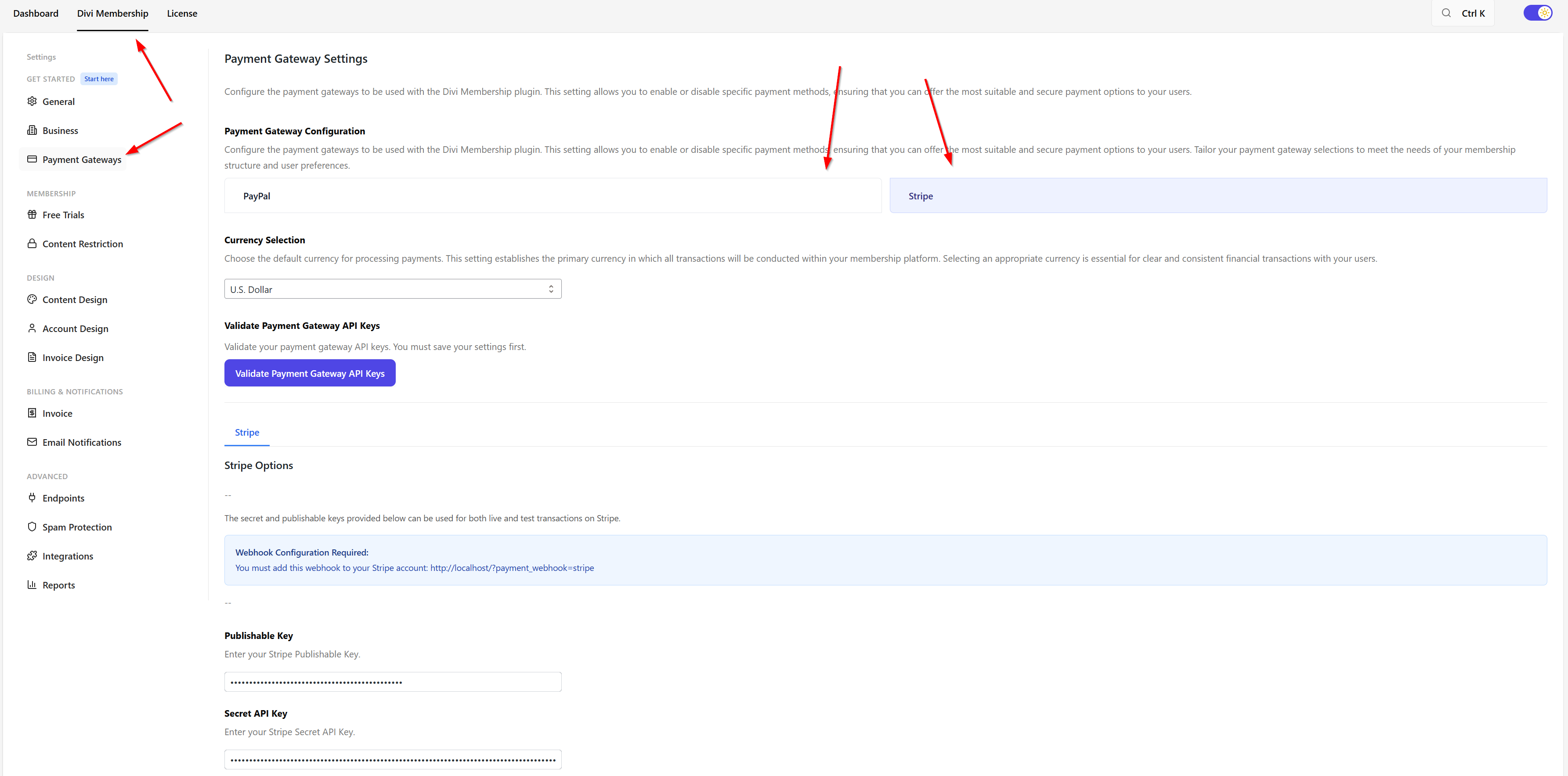
Where to configure
Go to Divi Engine → Divi Membership → Payment Gateways. Turn on the gateways you want and enter Stripe and/or PayPal credentials. Validate Payment Gateway API Keys appears only when Stripe or PayPal is enabled. Bank transfer and WooCommerce do not use API keys. Save first, then validate.
Stripe v3 (default)
- Uses Stripe Elements for card input.
- Supports multiple payment methods (e.g. Klarna, iDEAL, Revolut Pay) where available.
- Billing address is not shown at checkout by default. The checkout form stays minimal.
Required Stripe webhook
Create a Stripe webhook endpoint at:
https://yoursite.com/?payment_webhook=stripe
Copy that endpoint's Signing secret (whsec_…) into Payment Gateways → Stripe → Webhook Signing Secret. The plugin verifies every webhook signature and rejects unsigned or incorrectly signed events. Without this secret, renewal, refund, failure, and subscription status events will not be accepted.
Stripe Legacy (v2)
- Enable Stripe Legacy Mode in Divi Engine → Divi Membership → Payment Gateways (e.g. “Enable Stripe Legacy Mode?”).
- When Legacy is on, billing address is collected at checkout.
- Use Legacy only if you need the older Stripe integration or must collect billing address during signup.
Card management in the account
With Stripe (v3 or Legacy), members can manage saved payment methods from their account: add a new method, remove a card, and Make Default. See Account page for the member-facing behaviour.
PayPal
Configure PayPal in the same Payment Gateways section. Members manage their PayPal payment methods via their PayPal account; the plugin links them there from the account area.
Bank transfer
Turn on Bank transfer under Payment Gateways. Set Checkout label (default Bank transfer) and Payment instructions (bank details, or a note that you will invoice the member).
On Registration Form and Signup Form, the member can choose this method. They see the instructions at checkout, on the account page, and in the payment email. The subscription is Pending payment, and access stays locked until an administrator uses Divi Membership → Subscriptions → Mark as paid. Reject payment rejects it. There is no card charge.
WooCommerce checkout
When WooCommerce is active, turn on WooCommerce under Payment Gateways. Members who choose it finish on your store checkout and pay with the methods already enabled there, such as WooCommerce Payments, Mollie, or Square. Set those methods up in WooCommerce → Settings → Payments. See WooCommerce.
What's Next
- Account page — Where members add, remove, and set default payment methods.
- Free trials — Trials with Stripe and PayPal.
- Settings — Full list of settings including Payment Gateways.