Membership Item
This reference is for Divi 5. The same module exists in the Classic Builder. See Membership Item on Divi 4.
Purpose and when to use
Membership Item (divi-membership/membership-item) shows one value from one plan: the title, a price, the feature table, or a register button. Its Divi 5 module picker label is Membership Item. A pricing table is several of these modules, one per piece of content.
Add it from the Divi Membership folder in the Visual Builder.
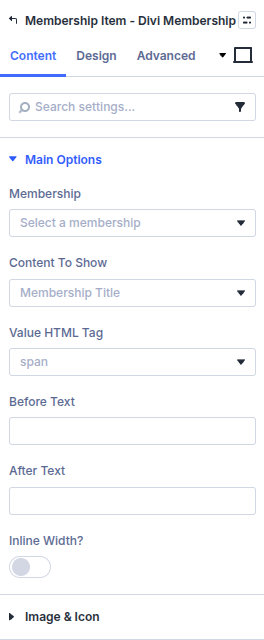
The module does not preview the first plan when Membership is still Select a membership. Choose a plan, and choose a billing cycle when the content depends on one. Pair it with Membership Cycle Switcher when visitors should change cycle on the page. The switcher’s default cycle should match the cycle on these items.
Before you configure this module
- The plan exists and has at least one billing cycle if you are showing a price or a register button.
- For a register button, a page already contains Registration Form or Signup Form.
Quick setup
- Add Membership Item.
- Set Membership to the plan.
- Set Content to Show. Membership Title is the default.
- If the content is a price, cycle title, or Register Button, set Billing Cycle.
- For Register Button, set Register Button Text (default Register) and Redirect Page. The button sends the chosen cycle to that page.
- Repeat for each cell of the pricing table (title, price, features, button).
Content tab
| Group | What it configures |
|---|---|
| Main Options | Plan, what to show, cycle, button, price format, HTML tag, before and after text |
| Feature Loop Grid Options | Columns and gaps. Shown when content is Feature Loop Layout |
| Image & Icon | Icon or image, placement, mobile stacking |
| Background / Link / Admin Label | Standard Divi groups |
Content to Show
| Option | Needs a billing cycle |
|---|---|
| Membership Title | No |
| Membership Description | No |
| Billing Cycle Title, Type, Frequency, Duration, Description | Yes |
| Billing Cycle Price | Yes. Price Format when on sale defaults to Price and Sale Price |
| Billing Cycle Sale Price | Yes |
| Membership Features Table | No. Show Headings in Feature Table defaults to on |
| Feature Loop Layout | No. Choose a Feature Loop Layout from the Divi Library |
| Feature Title / Feature Description | Only inside a feature loop |
| Register Button | Yes, plus Redirect Page |
Show Currency Symbol defaults to on for price content.
Value HTML Tag defaults to span. Before Text and After Text wrap the value. Inline Width? defaults to off.
If the billing cycle dropdown says a membership or cycle still needs to be selected, pick them and reload the builder after you add a cycle in the plan editor.
Image and icon
Use Icon defaults to off. With it off, Custom Image before/after uploads an image and Custom Image Alt Text sets the alt text. Custom Image max width defaults to a percentage. Image / Icon Placement is Top, Right, Bottom, or Left. Image Mobile Stacking is None, Stack, or Stack Reverse.
Design tab
| Group | What it configures |
|---|---|
| Typography | Item, plus Text Before and Text After when those fields have text. Price Cross Out appears for Billing Cycle Price |
| Alignment | Text alignment of the item |
| Table | Header and body fonts, and table colours, when content is the features table |
| Register Button | Button styles when content is Register Button |
| Icon Settings | Icon colour and size when Use Icon is on |
| Membership Item Padding | Padding around the value |
| Sizing, spacing, border, box shadow, filters, animation, transform | Module chrome |
Advanced
Standard Divi groups: attributes, CSS, conditions, visibility, transition, position, and scroll.