Create Product Form
Building a Create Product form
Use the Form module to let logged-in users (or guests, when allowed) create WooCommerce products from the frontend.
When to use this form type
Use Create Product Form when visitors or staff should submit new products without using wp-admin, including:
- Vendor or marketplace-style product submissions
- Staff product intake forms
- Product drafts that need review before publish
Use Create Post / Page / CPT for non-product post types. Use Contact form for inquiries that should not create products.
Prerequisites
- WooCommerce is installed and active (the Create Product form type appears when WooCommerce is available).
- You know which product attributes you need (title, prices, stock, images, taxonomies, ACF).
- Optional: ACF field groups assigned to products if you map ACF fields.
Step 1: Add the Form module
- Open the page in the Visual Builder.
- Insert the Form module where the form should appear.
Step 2: Set form type to Create Product
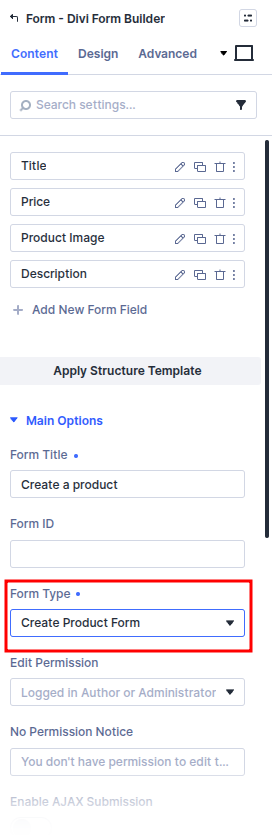
- Select the Form module → Content tab.
- Set Form Title. A unique Form ID is optional. Leave it blank and Form Builder assigns one. If you set one, use an ID that is not already used by another form.
- Set Form Type to Create Product Form.
- Set Submit Button Text (for example
Create productorSubmit for review).
Step 3: Configure create / edit behavior
For product create forms, review these Main options when available:
- Default Post Status — Draft vs publish workflow for new products
- Allow Guest Post Creation — Guests can submit; guest-created products are forced to Draft
- Edit Permission / Edit Permission Role / No Permission Notice — Who can edit after creation
- Enable Assign Terms for Non-Logged Users — Allow guests to set taxonomies when guest creation is on
Step 4: Add and map fields
- Add fields with Add New Form Field.
- For each field, set Field Title, Admin Title, and Field Type. A unique Field ID is optional. Leave it blank and Form Builder assigns one. If you set one, use an ID that is not already used by another field on the form.
- Set Field Mapping Type to one of:
| Mapping type | Use for |
|---|---|
| Product Post Fields | Standard post fields such as title, content, excerpt, status, slug, featured image, parent, type, date |
| Product Fields | WooCommerce product meta (prices, gallery, stock) |
| Product Taxonomy | Product categories, tags, or other product taxonomies |
| ACF Field | Advanced Custom Fields on the product |
| Custom Meta Key | Arbitrary product meta keys |
| Custom Field Name | Advanced custom field name mapping |
Product Fields options
When Field Mapping Type is Product Fields, choose Product Field Mapping:
| Option | Stores |
|---|---|
| Price | _price |
| Regular Price | _regular_price |
| Sale Price | _sale_price |
| Product Image Gallery | _product_image_gallery |
| Stock Status | _stock_status |
| Stock | _stock |
Map at least one field to the product title (Product Post Fields → Post Title). Map pricing and stock fields explicitly when those values must save correctly.
See Field mapping and Field types for details.
Step 5: Customize and style
Use Content and Design tabs for redirects, success/error messages, layout, and per-field appearance or conditional logic.
Some options (for example certain email-only flows) behave differently on create-type forms. Test the product outcome first, then add notifications.
Verify it works
- Submit a test product from the frontend as an allowed user.
- Confirm the product appears under Products in wp-admin.
- Confirm title, prices, stock, gallery, taxonomies, and ACF values match the submission.
- Confirm default status and guest-draft behavior match your settings.
- If using edit flows, open the product with Edit Post Button or your edit page and confirm mapped fields update.
Common setup mistakes
- WooCommerce inactive, so Create Product Form never appears in Form Type.
- Mapping price or stock with the wrong mapping type (use Product Fields, not only post fields).
- Skipping a title mapping.
- Expecting guest submissions to publish when guest creation forces Draft.
- Testing only in the builder preview instead of a real frontend submit.
What's Next
- Create Post / Page / CPT form — Non-product create forms
- Field mapping — Mapping rules across form types
- Edit Post Button module — Frontend edit/delete for products and posts
- Form module reference — Full Form module settings