Installation
Prerequisites
Before installing, ensure you have:
- Divi — Latest version of Divi 5 or Divi 4
- WordPress — Current stable version of WordPress
- Divi Machine — Divi Machine installed and active
- Divi Machine Accounts ZIP — Downloaded from your Divi Engine account
Divi Machine
Divi Machine Accounts is built to work with Divi Machine. You can activate Accounts without it, but account loops and saved lists will not work.
Installation flow at a glance
- Download the plugin ZIP.
- Install and activate it in WordPress.
- Confirm Divi Machine Account appears under Divi Engine.
- Activate your license.
- Confirm the account modules appear in the Visual Builder.
Step 1: Download the plugin
- Log in to your Divi Engine account.
- Go to Downloads.
- Click the Divi Machine Accounts download button to get the ZIP file.
Step 2: Install and activate the plugin
- Log in to your WordPress site.
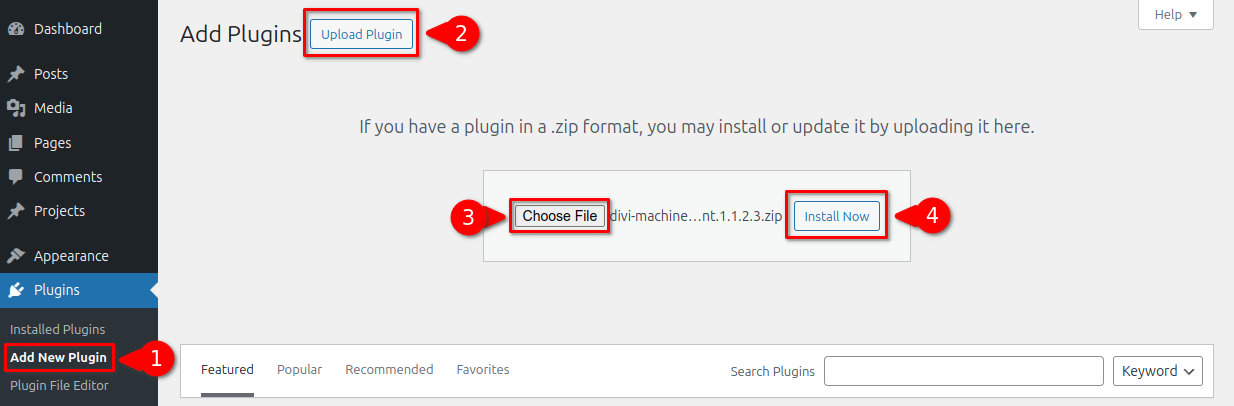
- Go to Plugins > Add New.
- Click Upload Plugin, choose the Divi Machine Accounts ZIP file, then click Install Now.
- After the upload completes, click Activate Plugin.
Activation creates Account posts for Navigation, Dashboard, Login, Notifications, Profile, Messages, and Search Alerts. It also adds an Account User role for front-end accounts. Notifications, messages, and search alerts stay out of the account menu until you turn each one on.
Step 3: Verify installation
- Confirm the Divi Engine menu appears in the WordPress admin sidebar.
- Open Divi Engine > Divi Machine Account and confirm Main settings, Layout settings, User settings, Notifications, Profile, Messages, and Search alerts.
- Open Account and confirm Navigation, Dashboard, Login, Notifications, Profile, Messages, and Search Alerts.
- Edit the Login account post in the Visual Builder.
- Add a module and confirm the account modules appear in the Divi Machine Accounts folder on Divi 5. Divi 4 shows Acc Login Form, Acc Register Form, Acc Navigation, and Acc Wishlist Icon in the Divi Machine group.
Step 4: Activate the license
- Log in to your Divi Engine account.
- Go to Orders.
- Click Manage License.
- Generate a license for Divi Machine Accounts and copy the key.
- In WordPress, go to Divi Engine > Licenses. You can also use the license link in the site notice after activation.
- Paste the key and activate it.
Divi 5 and Divi 4
The plugin chooses the builder for you:
- Divi 5 enabled: modules load in the Divi 5 Visual Builder, including notifications, the user icon, profile, messages, and search alerts.
- Divi 4, or Divi 5 with the Divi 5 builder turned off: Acc Login Form, Acc Register Form, Acc Navigation, and Acc Wishlist Icon load in the Classic Builder. The newer account modules are Divi 5 only.
Settings, account posts, and saved lists are shared. You do not run a migration wizard. When Divi 5 is enabled, the stock account layouts are upgraded automatically. Open a custom Divi 4 layout in the Divi 5 Visual Builder to convert its module settings.
What's next
- Quick start — Confirm the account slug, layouts, and login page.
- Main settings — Account URL, saved lists, and dislike lists.