Quick start guide
This quick start edits account layouts in the Divi 5 Visual Builder. Divi 4 uses the same Account posts and the same modules in the Classic Builder. See Acc Login Form, Acc Register Form, and Acc Navigation.
Overview
Confirm the account URL, point the three shell layouts at the right account posts, then open the account area logged out and logged in. Notifications, messages, and search alerts stay hidden until you turn them on.
Prerequisites
- Divi Machine and Divi Machine Accounts are installed, activated, and licensed.
- You can open Divi Engine → Divi Machine Account.
- You can edit an Account post in the Visual Builder.
Step 1: Set the account URL
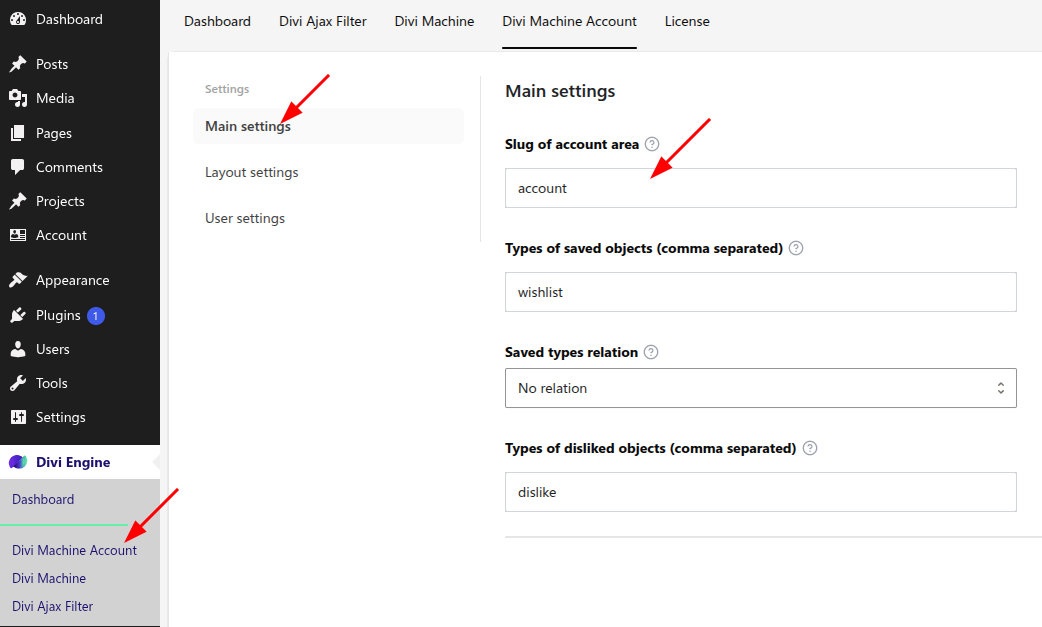
- Go to Divi Engine > Divi Machine Account > Main settings.
- Leave Slug of account area as
account, or type another slug. - Save.
- Go to Settings > Permalinks and click Save Changes. Do this even if you kept the default slug
account.
WordPress sometimes needs permalinks saved twice before the account area resolves. If https://your-site.com/account/ (or your custom slug) is a 404, open Settings > Permalinks and click Save Changes again.
The account area is then available at that URL. If another plugin already uses that path, pick a different slug.
Full field notes are on Main settings.
Step 2: Assign the three layouts
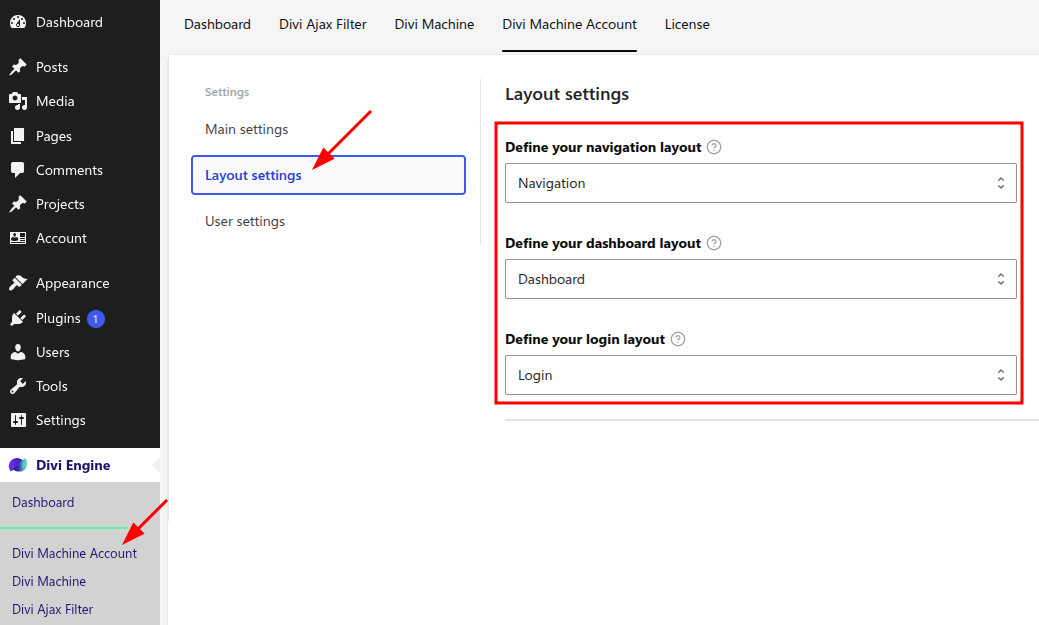
Activation creates Navigation, Dashboard, Login, Notifications, Profile, Messages, and Search Alerts under Account. Layout settings selects the first three by default. Confirm those selections, especially on an existing site.
- Open Layout settings.
- Set Define your navigation layout to Navigation.
- Set Define your dashboard layout to Dashboard.
- Set Define your login layout to Login.
- Save.
Those three posts are the shell of the account area. Profile is available as soon as it is published. Notifications, Messages, and Search Alerts stay out of the menu, and their URLs stay closed, until you turn each feature on. Any other account post you add becomes its own link. See Custom endpoints.
Step 3: Check navigation and login
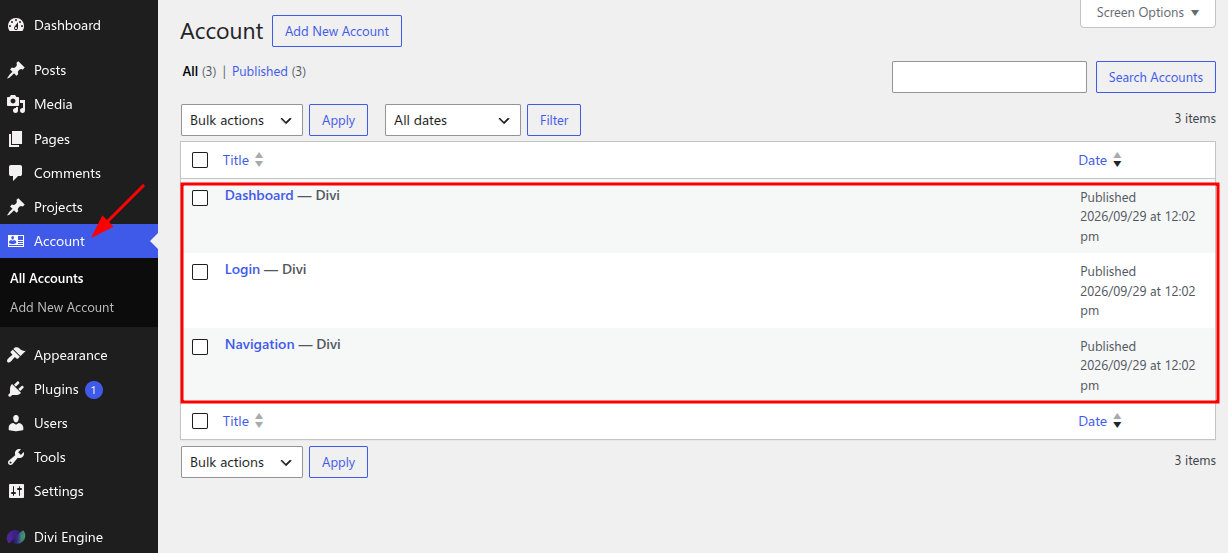
Navigation already includes Acc Navigation. Login already includes Acc Login Form and Acc Register Form.
- Open Account > Navigation > Edit with Divi.
- Select Acc Navigation in the Divi Machine Accounts folder and confirm Logout Text (default Logout).
- Open Account > Login > Edit with Divi.
- Confirm Acc Login Form and Acc Register Form.
- Save each layout.
Setting names for each module are in Modules.
Step 4: Preview the account area
- Open the account URL in a private window. You should see the login layout. If it is a 404, save permalinks a second time, as described in step 1.
- Register or log in.
- Open the account URL again. You should see the dashboard, with navigation buttons for the dashboard and any extra account pages, plus logout.
Step 5: Turn on the features you want
Notifications, messages, and search alerts are off after install. Open Divi Engine > Divi Machine Account and turn on only the ones this site needs:
- Notifications — on-site list, optional email, and the unread count.
- Profile — which fields members can edit, and which are public. Profile does not have an off switch.
- Messages — listing messages and member-to-member messages.
- Search alerts — save a filtered search and email new matches. This needs Divi Ajax Filter, which Divi Machine includes.
Each guide walks through the matching modules.
Step 6: Add a wishlist when you need one
Saved lists are optional. When you want visitors to save posts:
- Keep Types of saved objects as
wishlist, or add more names, on Main settings. - Add Acc Wishlist Icon from Divi Machine Accounts inside a loop item. See Wishlist Icon. For Divi 4, see Acc Wishlist Icon.
- Show the saved posts with Archive Loop. See Display a saved list.
What's next
- Main settings — Slug, saved lists, and dislike lists.
- Layout settings — Navigation, dashboard, and login posts.
- Modules — Login, register, navigation, wishlist, and the Divi 5 account modules.