Debug Settings
Open WordPress Admin → Divi Engine → Divi Membership → Debug under Advanced.
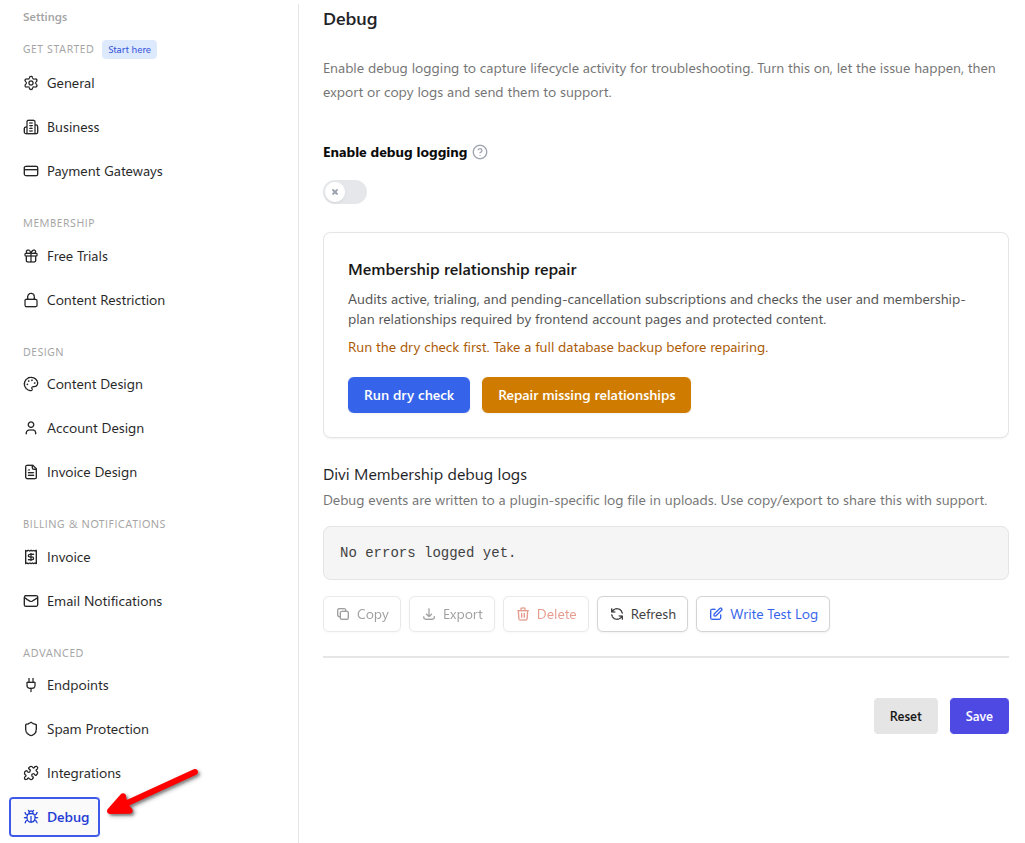
Capture a problem
- Turn on Enable debug logging.
- Reproduce the registration, signup, subscription, renewal, or trial issue.
- Return to Debug and review the log viewer.
- Use Copy or Export to share the relevant log with support.
- Turn logging off when you have finished troubleshooting.
Divi Membership masks sensitive values automatically. Even so, review an exported log before sharing it and use a secure support channel.
Log location
Debug events are written in the WordPress uploads directory at:
divi-membership/divi_membership_debug.log
The viewer on the Debug screen is the easiest way to read and export this file. If the log is empty, confirm logging is enabled and reproduce the issue once more.
Membership relationship repair
Membership relationship repair checks active, trialing, and pending-cancellation subscriptions. It looks for the user and membership-plan links that account pages and protected content need.
- Choose Run dry check first. The dry check does not change any data.
- Review the counts and the row list. Export CSV report downloads that result.
- Take a full database backup, then choose Repair missing relationships. Confirm the prompt. Repair only adds missing user and plan links. Subscriptions and payment data stay as they are.
- Export the CSV again if you want a record of what was repaired.
The result shows how many subscriptions were scanned, already correct, in need of repair, repaired, failed, or had invalid links.
What's Next
- Troubleshooting — Diagnose common membership issues.
- Payment failed / Stripe form not completing — Check failed Stripe registrations.
- Settings overview — See all settings sections.