Payment Gateways
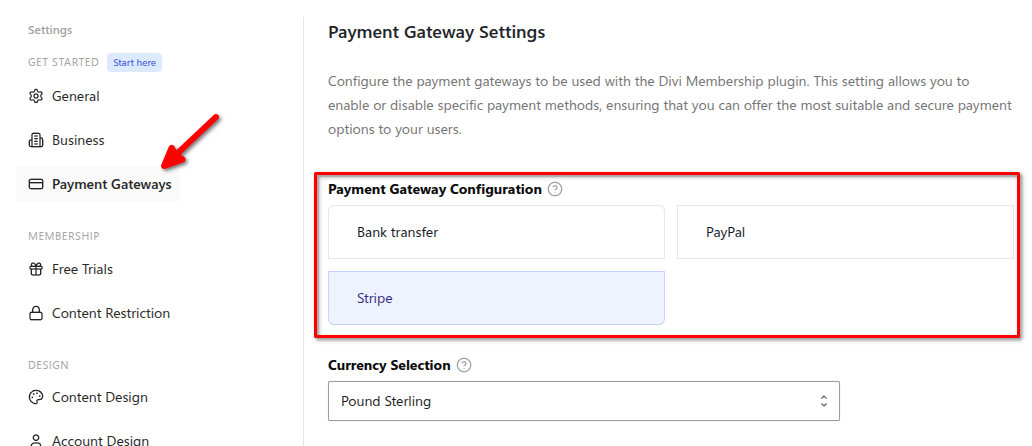
The Payment Gateways tab is at WordPress Admin → Divi Engine → Divi Membership → Payment Gateways. You choose which gateways are enabled (Stripe, PayPal, bank transfer, and WooCommerce when WooCommerce is active), set the currency, then configure each gateway in its own tab. Validate Payment Gateway API Keys is shown only when Stripe or PayPal is enabled. Save your settings first, then use it to check those credentials. Bank transfer and WooCommerce do not use API keys.
Payment Gateways
| Setting | Type | Default | What it does |
|---|---|---|---|
| Payment Gateways | Checkbox list | — | Which payment gateways are enabled (Stripe, PayPal, bank transfer, and WooCommerce when WooCommerce is active). |
| Currency | Select | USD | Currency for payments. Allowed: AUD, BRL, CAD, CNY, CZK, DKK, EUR, HKD, HUF, INR, ILS, JPY, MYR, MXN, NOK, NZD, PHP, PLN, GBP, RUB, SGD, SEK, CHF, TWD, THB, TRY, USD. |
Stripe (when Stripe is enabled)
| Setting | Type | Default | What it does |
|---|---|---|---|
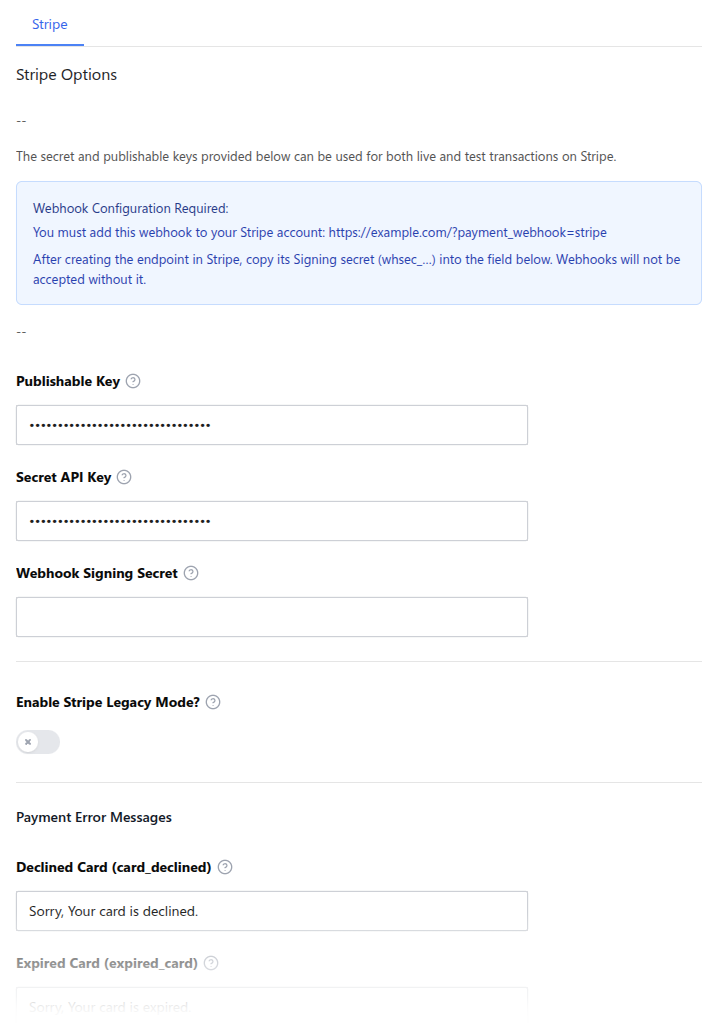
| Publishable Key | Text (masked in UI) | — | Stripe publishable key. |
| Secret API Key | Text (masked in UI) | — | Stripe secret API key. |
| Webhook Signing Secret | Text (masked in UI) | — | Signing secret beginning whsec_ from the Stripe webhook endpoint. Required for secure webhook processing. |
| Enable Stripe Legacy Mode? | Toggle | off | When on, the plugin uses the older Stripe checkout (e.g. to show billing address at checkout). |
| Declined Card | Text | Sorry, Your card is declined. | Message shown when the card is declined. |
| Expired Card | Text | Sorry, Your card is expired. | Message for expired card. |
| Incorrect CVC | Text | Sorry, CVC for your card is incorrect. | Message for incorrect CVC. |
| Processing Error | Text | There was an issue with processing your payment, please try again. | Generic processing error message. |
| Incorrect Number | Text | (default) | Message for incorrect card number. |
| Invalid Expiry Month | Text | (default) | Message for invalid expiry month. |
| Invalid Expiry Year | Text | (default) | Message for invalid expiry year. |
Stripe webhook
Stripe must be able to tell the site about renewals, failed payments, refunds, and subscription changes.
- In Stripe Dashboard, create a webhook endpoint for
https://yoursite.com/?payment_webhook=stripe. - Open the endpoint in Stripe and reveal its Signing secret.
- Copy the value beginning
whsec_into Webhook Signing Secret in Divi Membership. - Save settings and send a test event from Stripe.
The plugin rejects Stripe webhook requests when the signing secret is missing or the signature cannot be verified. Do not paste a Stripe API secret (sk_…) into the webhook field.
Validate Payment Gateway API Keys
After entering Stripe or PayPal keys, save your settings first, then click Validate Payment Gateway API Keys. That button is hidden when only bank transfer or WooCommerce is enabled.
Bank transfer (when Bank transfer is enabled)
| Setting | Type | Default | What it does |
|---|---|---|---|
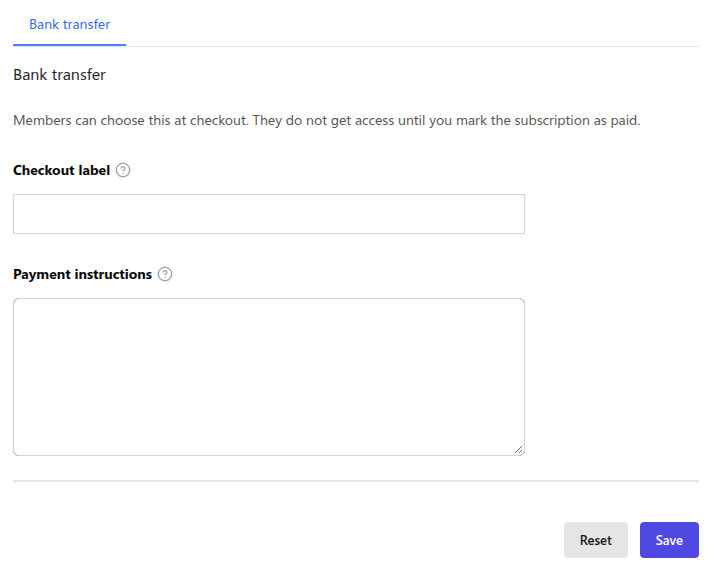
| Checkout label | Text | Bank transfer | Name shown on Registration Form and Signup Form. |
| Payment instructions | Textarea | — | Bank details, or a note that you will invoice the member. Shown at checkout, on the account page, and in the payment email. |
The member gets a Pending payment subscription and does not get protected-content access until an administrator opens Divi Membership → Subscriptions and chooses Mark as paid. Reject payment rejects the pending subscription. The member sees the instructions at checkout, in the account, and in email. If instructions are empty, the form explains that access starts after payment is received.
WooCommerce (when WooCommerce is enabled)
The WooCommerce checkbox appears only when WooCommerce is active. Turning it on opens a WooCommerce checkout tab. That tab has no API keys and no fields to save.
Members who choose WooCommerce on Registration Form or Signup Form finish payment on your store checkout. They pay with the methods already enabled in WooCommerce, such as WooCommerce Payments, Mollie, Square, or WooCommerce bank transfer. Set those methods up in WooCommerce → Settings → Payments.
On each membership plan, open the WooCommerce tab and link a product ID to every billing cycle you want to sell this way.
- One-time cycles use a simple or virtual product.
- Recurring cycles need WooCommerce Subscriptions and a subscription product.
Member shop discounts, members-only products, and teaser products live on that same plan tab. They keep working when this gateway is turned off. See WooCommerce.
At checkout the form tells the member they will complete payment on the store checkout using the shop’s payment methods.
PayPal (when PayPal is enabled)
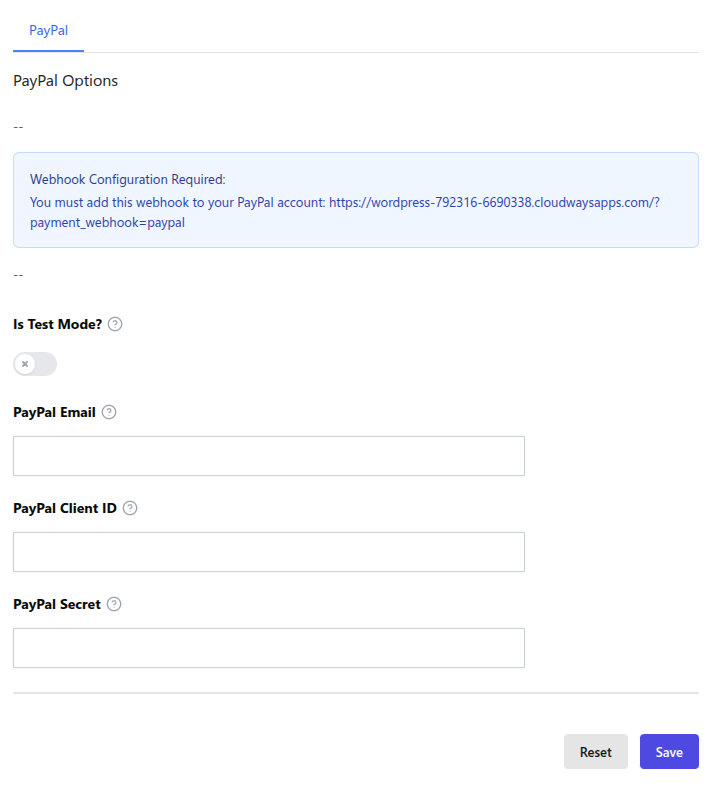
When PayPal is enabled, the PayPal tab shows these options:
| Setting | Type | Default | What it does |
|---|---|---|---|
| Is Test Mode? | Toggle | — | When on, the plugin uses PayPal Sandbox for testing. Turn off for live payments. |
| PayPal Email | Text | — | Your PayPal business email address. |
| PayPal Client ID | Text (masked in UI) | — | Client ID from your PayPal app (REST API credentials). |
| PayPal Secret | Text (masked in UI) | — | Secret from your PayPal app (REST API credentials). |
You must add a webhook to your PayPal account so the plugin can receive subscription and payment events. The UI shows the webhook URL you need to add (e.g. https://yoursite.com/?payment_webhook=paypal). In your PayPal Developer dashboard, create a webhook and use this URL; otherwise subscription status and renewals may not update correctly.
What's Next
- Invoice Design — Invoice colors.
- Email Notifications — Notification templates.
- Stripe and Payment Gateways — Feature overview.
- WooCommerce — Shop discounts, members-only products, and checkout product IDs.
- Settings overview — Where to find each section.