Grid, list, masonry, and pagination
Presentation settings are on Archive Loop. Visitor-facing grid/list toggles are covered in Using the list/grid switcher. Open the module reference when you need every nested field.
All of the recipes below start in the Visual Builder: edit Archive Loop, then use Content. After Ajax filtering, the module reapplies the same layout to the new HTML.
Grid and list
Use List for directory-style rows and article feeds. Use Grid for card walls and product tiles.
Located in: Archive Loop → Content → Grid Settings → Grid Style
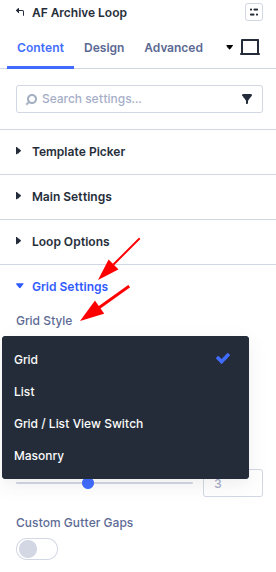
- Set Grid Style to Grid or List.
- For Grid, set Columns (often 3 for blogs, 4 for products).
- Optionally enable Custom Gutter Gaps to set horizontal and vertical spacing.
- Preview tablet and phone in the builder so column counts still fit.
Leave Grid Style as a single mode when visitors should not change the layout. To let them toggle, see List/grid switcher.
Masonry and equal height
Masonry packs cards of mixed height without forcing a shared row. Equal Height Posts stretches items in a row so titles and buttons line up.
Pick one:
| Goal | Setting |
|---|---|
| Mixed excerpt lengths or images (portfolios, magazines) | Grid Style → Masonry |
| Uniform card rows (product grids, even tiles) | Grid Style → Grid, then enable Equal Height Posts |
Equal Height Posts has no effect when Grid Style is Masonry. Nested modules in a custom loop layout also affect measured height—test both options with your real card.
Enable masonry
- Archive Loop → Content → Grid Settings.
- Set Grid Style to Masonry.
- Set Columns and gutters as you would for a grid.
- If cards jump after filtering (images still loading), raise Masonry Ajax Delay (milliseconds) until the layout settles.
Enable equal height
- Archive Loop → Content → Grid Settings.
- Set Grid Style to Grid (not Masonry).
- Enable Equal Height Posts.
- If a bottom-aligned button or price appears, use the extra option to pin the last module to the bottom of the card.
Pagination and load more
Choose how visitors reach the rest of the query. Post Count (Content → Main) is how many items load per page or per batch—default 10.
| Option | Best when |
|---|---|
| Pagination | Visitors need numbered pages, “page 2” URLs, or to jump ahead |
| Load More | You want an explicit “show more” button that appends results |
| Infinite Scroll | A continuous feed; the next batch loads at the bottom of the list |
| None | A single page of results with no further loading |
Located in: Archive Loop → Content → Element Settings → Choose How To Display Load More Posts
- Set Post Count to the batch size you want (for example 12).
- Under Element Settings, choose Pagination, Load More, Infinite Scroll, or None.
- For Pagination, set Pagination Position (Bottom, Top, or both) and optionally Scroll To Top After Pagination (use Scroll To Top Offset for a sticky header).
- For Load More, set Load More Text, Load More Loading Text, and Load More Button Alignment. Style the button in the Design tab when those options appear.
Filtered queries keep pagination in sync with active filters. If page two looks wrong after filtering, confirm Archive Loop and Filter Posts share the same post type and query rules. See Pagination or load more loses filters if the next page drops the filter.
Results count
Show how many posts match the current filter set so visitors know what the loop is displaying.
Located in: Archive Loop → Content → Element Settings → Show Results Count
- Enable Show Results Count.
- Set Results Count Position (for example Top or Bottom).
- Customize copy:
- Singular — one result (for example “Showing the only result”).
- All — every result on one view. Use
%dfor the total (for example “Showing all%dresults”). - Multiple — a paged range. Use three
%dplaceholders: start, end, total (for example “Showing%d–%dof%dresults”).
Pair the count with reset or selected-filter chips so it is obvious why the number changed. Field-level wording lives on Archive Loop.
List/grid switcher
When Grid Style is Grid / List View Switch, visitors toggle layout without a reload. Default view, button position, and cookie memory are documented in Using the list/grid switcher—including CSS classes for custom loop layouts.
What's next
- Archive Loop module — All layout and pagination settings
- Using the list/grid switcher — Toggle between grid and list
- Query, sorting, and archives — Underlying query behavior
- Pagination or load more loses filters — Next page drops the active filter