Query, sorting, and archives
Steps below use Archive Loop (Divi 5). Post status, query filters, relationships, sticky posts, secondary sort, and taxonomy grouping are Divi 5 only. On Divi 4, the Archive Loop module offers include/exclude terms, on-load terms, and a single sort order—see Archive Loop (Divi 4).
Filters narrow the result set; the loop query defines the starting pool. Each recipe below starts in the Visual Builder: edit Archive Loop, then use the Content tab.
Base query vs filters
Archive Loop sets post type, status, include and exclude rules, and relationships. Filter Posts applies visitor selections on top of that query via Ajax.
Located in: Archive Loop → Content → Main and Loop Options → General
- Under Main, set Post Type to the content you want to list.
- Enable Main Loop so Filter Posts targets this module (required when a page has more than one loop).
- Under Loop Options → General, set Post Status (usually Published).
- Set Post Count for the page or batch size, and Offset if you feature the first post separately.
- Set the same post type on Filter Posts, then check the taxonomies you filter on exist for it.
If another plugin or a pre_get_posts hook is altering results, set Query Filters to Ignore to run a clean query for the post type.

Include and exclude terms
Three tabs narrow the pool before visitors filter anything. The difference matters:
| Tab | Applies |
|---|---|
| Terms | Always, including after every Ajax filter |
| Exclude Terms | Always—those posts never appear |
| On Load | First render only; dropped as soon as the visitor filters |
Located in: Archive Loop → Content → Loop Options → Terms, Exclude Terms, or On Load
- Open Terms and tick Include categories or Include tags to hard-limit the loop. Leave everything unchecked to use the broader query.
- For a custom taxonomy, choose Include Taxonomies, then pick Include Taxonomy Terms.
- To match a field instead, set Include ACF field and Include ACF value.
- Open Exclude Terms and tick Exclude categories or Exclude tags to drop content permanently.
- For a landing state that visitors can filter away from, use On Load Categories, On Load Tags, or On Load Taxonomies instead of Terms.
Use On Load for a default view, and Terms for a genuine boundary—putting a boundary in On Load lets visitors filter past it.
Sorting
Set the primary order, then add a tiebreaker so results stay stable when values repeat. Changing filters does not reset sort.
Located in: Archive Loop → Content → Loop Options → Sorting
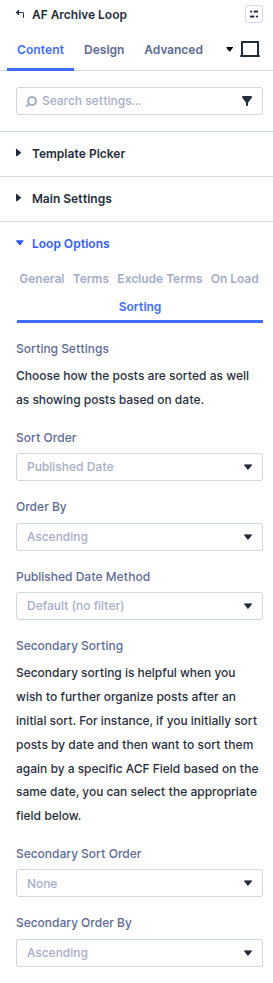
- Set Sort Order (Date, Title, Menu Order, ACF Field, and others).
- Set Order By to Ascending or Descending.
- For an ACF field, choose the Sorting ACF Field and set ACF Field Type to Numeric or String—the wrong type sorts prices and scores as text.
- Add a Secondary Sort Order and Secondary Order By for posts that share the same primary value (for example date, then title).
Event dates with ACF
- Set Sort Order to ACF Date Picker and choose the ACF Date Picker Field holding the start date.
- Set Date Picker Method to the window you want—for example Today and Future for upcoming events, or In the Past for an archive.
- For multi-day events, choose Today, Future, and Ongoing and set an End Date Field, so an event stays listed until it finishes.
Visitor filters (category, date range, and so on) apply on top of that baseline.
Sticky posts
Located in: Archive Loop → Content → Loop Options → General → Sticky Posts
| Choice | Result |
|---|---|
| Include normally | Sticky posts pin to the top and override your sort order |
| Include, but don't pin to top | Sticky posts follow the same sort as everything else |
| Exclude completely | Sticky posts are skipped—useful when a separate featured section already shows them |
| Show only sticky posts | A featured-only grid |
Pick Include, but don't pin to top when sort order matters more than pinning; Include normally will otherwise outrank it. Test with filters active so pinning still matches editorial expectations.
Relationships and meta
Relationship options restrict a loop to content related to the post being viewed, so they belong on single post templates or dynamic pages.
Located in: Archive Loop → Content → Loop Options → General → Relationship Type
- Place the Archive Loop on a single post or dynamic template.
- Set Relationship Type to how the posts connect:
- Categories, Tags, or Custom taxonomy — shares terms with the current post
- Post object / relationship — linked through an ACF Post Object or Relationship field
- ACF field match — both posts hold the same value in a shared field
- Current user's posts — only the logged-in user's content, for dashboards and profiles
- Leave it at None for a general listing.
- If you add Filter Posts to a relationship loop, expose the same fields visitors expect to narrow.
Archive context
On native archive templates, these control how the loop treats the current category, tag, or taxonomy term.
Located in: Archive Loop → Content → Main
- Enable Show All Posts For Current Term to include every post linked to the active archive term, even when those posts also belong to other terms.
- Enable Disable Posts When Term Has Child Terms so a parent term archive lists its subterms instead of mixed posts.
- On a normal page (not an archive template), skip both and set post type and terms explicitly under Main and Loop Options → Terms—there is no archive term to inherit.
Group by taxonomy
Grouping clusters results under term headings, which suits FAQs, spec lists, and regional directories.
Located in: Archive Loop → Content → Main (not Loop Options)
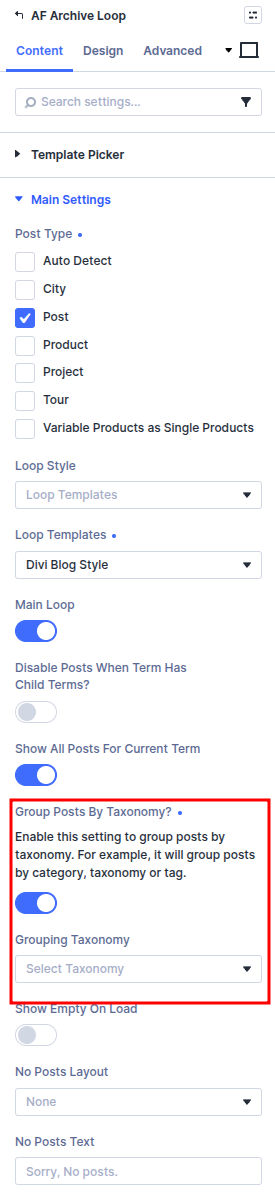
- Enable Group Posts By Taxonomy.
- Choose the Grouping Taxonomy to cluster by.
- Style the headings in the Design tab under Grouping Taxonomy Title, which appears once grouping is on.
- Filter with groups visible and confirm the headings still read sensibly when most terms are filtered out.
What's next
- Archive Loop module (Divi 5) — Full query and sort reference
- Archive Loop module (Divi 4) — Divi 4 loop and terms options
- Filter sources and control types — Filter item sources
- Ajax filter module behavior — Target loop and updates