Installation
Prerequisites
Before installing, ensure you have:
- Divi — Latest version of Divi 5 or Divi 4
- WordPress — Current stable version of WordPress
- PHP — PHP 8.0 or later recommended
- Divi Mega Menu ZIP — Downloaded from your Divi Engine account or from the Elegant Themes Marketplace if you purchased there
Installation flow at a glance
- Download the plugin ZIP.
- Install and activate it in WordPress.
- Confirm Mega Menu appears under Divi Engine.
- Activate your license (Divi Engine purchase only).
- Confirm mega menu modules appear in the Visual Builder.
Step 1: Download the plugin
- Log in to your Divi Engine account.
- Go to Downloads.
- Click the Divi Mega Menu download button to get the ZIP file.
info
If you purchased from the Elegant Themes Marketplace, download the plugin from your Elegant Themes account instead.
Step 2: Install and activate the plugin
- Log in to your WordPress site.
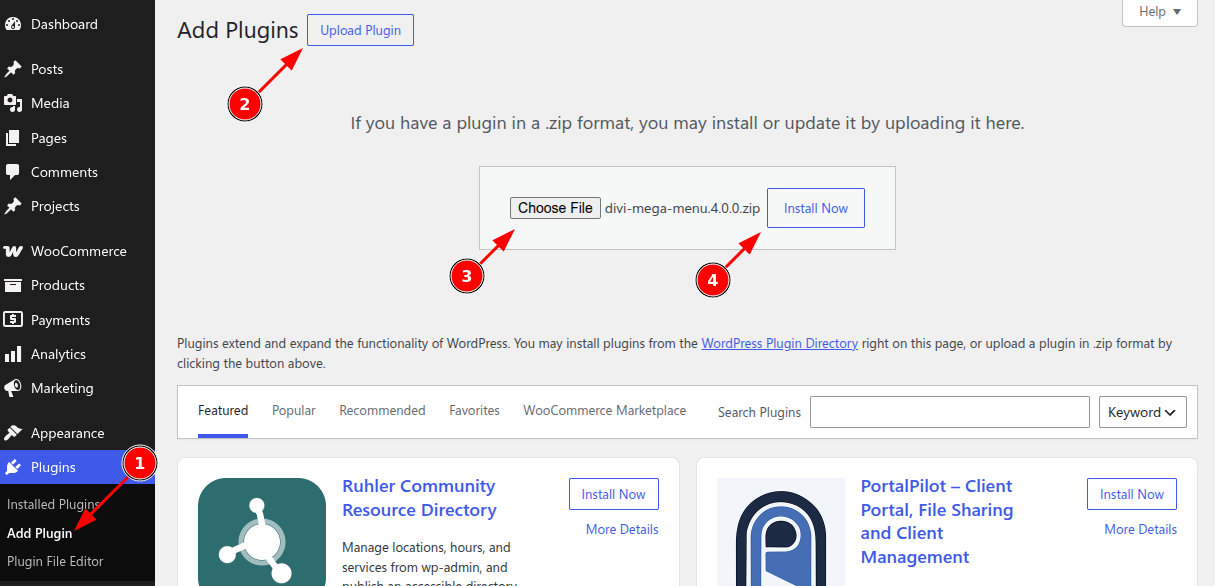
- Go to Plugins > Add New.
- Click Upload Plugin, choose the Divi Mega Menu ZIP file, then click Install Now.
- After the upload completes, click Activate Plugin.
Step 3: Verify installation
- Confirm the Divi Engine menu appears in the WordPress admin sidebar.
- Open Divi Engine > Mega Menu and confirm you can add a new mega menu.
- Open a mega menu in the Visual Builder.
- Add a module and confirm Mega Drop-down and Mega Tabs appear (Divi 5: folder Divi Mega Menu).
Step 4: Activate the license
If you purchased from the Divi Engine website:
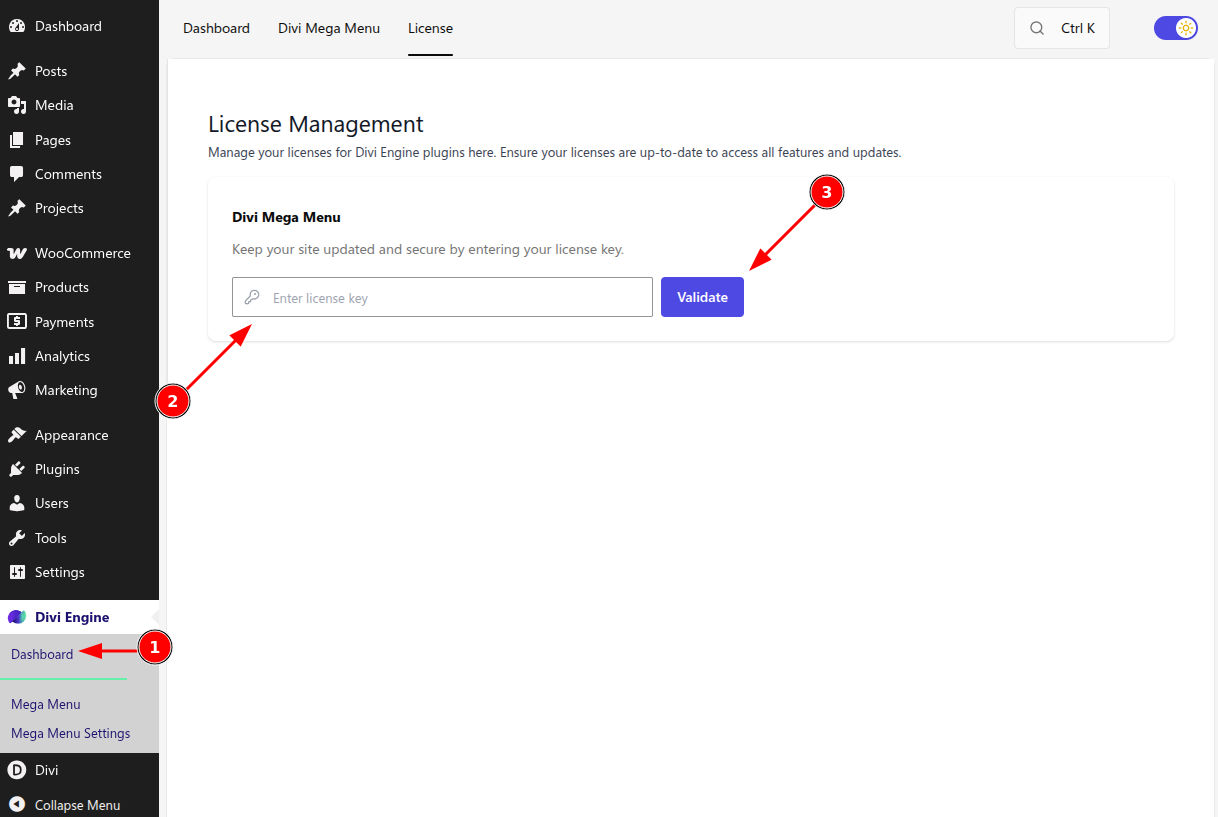
- Go to Divi Engine > Licenses in the WordPress sidebar.
- Enter your Divi Mega Menu license key (from Divi Engine Orders > Manage License).
- Click Activate.
note
Skip this step if you installed the plugin from the Elegant Themes Marketplace. Marketplace purchases do not use a separate license key in Divi Engine > Licenses.
Common setup issues
- Mega Menu does not appear under Divi Engine: Confirm the plugin is active and you are an administrator.
- Modules do not appear in the builder: Confirm you are editing a mega menu (or a layout that allows Mega Menu modules) in the Visual Builder for the Divi version you are running.
- License does not activate: Recopy the key from your order and make sure there are no extra spaces.
What's Next
- Quick start — Create, assign, and preview a mega menu.
- Settings — Header type, Ajax Loaded, and mobile options.