Custom Field Item
The Custom Field Item module (builder title in Divi 5) prints one registered custom field at a time—text, media, relationships, user data, and more—with optional labels, icons, and conditional visibility. Divi Machine resolves values across the field providers active on your site (see Custom fields and providers). The expandable setting names below follow the Divi 5 module UI; if your labels differ slightly, trust the builder.
Overview
The Custom Field Item module outputs a single custom field anywhere you can place a Divi module (including loop layouts and Theme Builder templates). Expand each setting below for what it does and when it applies. Extra Design and Advanced options follow normal Divi behavior.
Video Guide
How to use the Custom Field Item module
Step 1: Create the field in your stack
Create the field (or field group) in Advanced Custom Fields, Secure Custom Fields, Pods, Meta Box, Toolset, ACPT, or another supported provider, and assign it to the right location (post type, user, taxonomy, options page, and so on).
Step 2: Enter data on the object
Edit the post, user, term, or options screen that owns the field and save real values so the module has something to render.
Step 3: Add the module in Divi
Insert Custom Field Item, set Custom Field Name to the field slug, pick Custom field source (current post, user, etc.), then open the sections below for return formats, media, relationships, and visibility.
Custom Field Item module settings
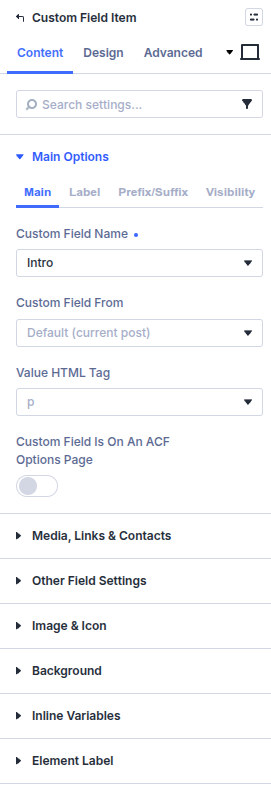
Sections mirror the module’s Main Options tab groups: Main, Label, Prefix/Suffix, and Visibility.
Main
Custom Field Name
Select or enter the ACF field whose value you want to display (the field slug / key the module resolves against the current context).
Custom field source
Choose where the field lives relative to the page: for example Current Post, Current User, Options Page, or other supported sources so the module reads the correct object.
Value HTML Tag
Wrapper tag around the value output (for example p, h2, div) for semantics and styling hooks.
Field is on an options page
Turn on when the field is stored on an ACF Options page so the module pulls from options instead of the current post.
Label
Show Label
Shows or hides the human-readable field label next to the value.
Label Separator
Character between label and value (often :). Only applies when Show Label is on.
Custom Label
Override the default ACF field label with your own wording.
Prefix / suffix
Prefix
Text immediately before the raw value (for example a currency symbol).
Suffix
Text immediately after the raw value (for example a unit).
Text Before
Optional longer lead-in before the label/value block (not the same as Prefix, which sits tight to the value).
Visibility
Visibility
Limit output to All Users, Logged In, or Logged Out visitors.
What To Do When Empty Value
When the field is empty: hide the module, hide a parent row or section, hide another element by selector, or show Custom Text instead.
Image, file, URL, phone, email, and link
These options appear when the ACF type is file, image, link, URL, email, phone, or similar. The builder splits them into Shared, Image, and Email style groups.
Shared
Image/File/Link: Return Format
Must match how the field is configured in ACF (Array, URL, ID, choice value/label/both, and so on). If you use Array in ACF for advanced link text or “another field” labels, choose Array here too.
Auto Detect Video/Audio for File field?
When the file URL points at a supported audio/video type, render a player instead of a plain link.
File/Link/Email/Phone field: Make it a Button?
Styles the output as a button instead of inline text or a raw link.
Link/URL/image/email/phone: Open in a New Tab?
Adds target behavior on the generated link.
File/Link/URL: Text Name
Controls the visible link text: Another ACF Field, File/Link/URL Name, or Custom Text.
File/Link/URL/Email: Custom Text
Used when Custom Text is selected for link text.
File/Link field: remove website link name
Hides the raw hostname/URL string when WordPress would otherwise print it next to the link.
URL: Make it an image?
When the URL points directly at an image file, render an img tag instead of a text link.
Image only
Placeholder Image
Fallback image when the ACF image field has no value.
Image: Link image to another ACF field?
Wraps the image in a link whose URL comes from a different ACF field.
Image: Image Size
Registered WordPress size: thumbnail, medium, large, full, or theme-defined sizes.
Image: Full Width
Forces the image to span the content width of its container.
Email only
Email: Subject
Prefills mailto: subject from None, Page Title, Page URL, or Custom Text.
Email: Body Text
Default body content for the mailto link.
Email: Body after
Appends Page Title, Page URL, or nothing after the body.
Email: Custom parameters
Append extra query parameters (for example cc= or custom keys) to the mailto URL.
Checkbox and radio
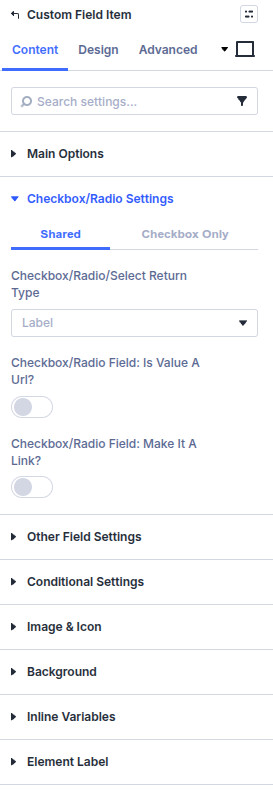
Shared
Checkbox/Radio/Select Return Type
Match ACF’s return mode—commonly Label or Value—so the module formats stored arrays correctly.
Checkbox/Radio field: Is value a url?
Treats the stored value as a URL and outputs a hyperlink.
Checkbox/Radio field: Make it a link?
Makes the displayed choice text clickable when the value is linkable.
Checkbox only
Checkbox: Style
Layout for multiple selections: List (Comma Separated), Bullet List, or Numbered List.
Other field types
Text
Prettify Your Text
Light formatting/cleanup for plain text output.
Text Make Image
Detects image URLs inside a text field and renders them as images.
Number
Number Decimal
Decimal separator character for locale-aware number display.
Show Value If Zero
When off, a numeric 0 can be suppressed; when on, zero displays like any other number.
Video and audio
Is Audio?
Use the audio player path when the file is sound, not video.
Is mp4 Video?
Self-hosted MP4: enables width, aspect ratio, loop, autoplay, controls, and background-video behavior.
Video Width
Maximum player width in pixels (or unit supported by the field).
Keep Aspect Ratio?
Preserves native aspect ratio when width changes.
Loop Video?
Restarts playback when the clip ends.
Autoplay Video?
Starts playback on load. When on, Thumbnail Image is typically hidden; turn autoplay off to show a poster frame.
Show Video Controls?
Browser-native play/pause/volume/scrub UI.
Set as Background Video?
Outputs for background-style placement instead of an inline player.
Is oEmbed Video?
For oEmbed ACF fields (YouTube, Vimeo, etc.), use the platform embed markup.
Defer Video?
Delays heavy embed loading until interaction for faster first paint.
Play Icon
Optional overlay icon before play (especially with deferred or thumbnail-first setups).
Play Icon Color
Color for the play icon overlay.
Thumbnail Image
Poster image before play when autoplay is off or when using a custom play treatment.
True / false
Text When True
Custom string when the boolean is true.
Text When False
Custom string when the boolean is false.
Repeater
Custom Label
Label override when this module sits inside a repeater sub-row.
Inside Repeater Loop Layout
Enable when the module is used inside a repeater-driven loop so sub-field resolution matches the repeater context.
Relational fields
Relational Field Style
Custom Loop Layout renders each related post with a saved layout, or Comma-Separated List for a simple inline list.
Relational Field Loop Layout
Pick the Divi Library layout used when style is Custom Loop Layout.
Grid Columns
Desktop column count for the related grid.
Tablet Grid Columns
Column count at tablet breakpoint.
Mobile Grid Columns
Column count on small screens.
User field
User Field Return
Which user property to print: Display Name, Email, Nickname, URL, Description, first/last name, ID, or Avatar.
Link to Author Page
Wraps the value in a link to that user’s archive/author URL when WordPress provides one.
Conditional CSS and visibility
Checkbox/Select – Add value as a CSS class?
Appends the field’s value as a class on a target selector (useful for theme styling per choice).
Is this in a loop layout?
Scopes class behavior correctly when the module lives inside a Custom Loop Layout.
CSS Selector
Element that receives the generated class (for example body or .my-row).
CSS name prefix
Optional text before the sanitized class fragment.
CSS name suffix
Optional text after the class fragment.
True/False – Hide another module/column/row in same section
When the boolean matches, hides a different element in the same section.
Hide the element with this CSS Selector
Selector of the row, column, or module to hide (for example a button class).
Image and icon
Use Icon
Switches the accent from uploaded art to a Divi icon font glyph.
Custom Image before/after
Small image beside the value when not using an icon.
Custom Image Alt Text
Accessibility text for the custom image.
Image / Icon Placement
Left, Right, Top, or Bottom relative to the value block.
Custom Image before/after max width
Caps image width (percent or pixel value supported by the field).
Image Mobile Stacking
None, Stack Above, or Stack Below for small screens when icon/image and text sit in one row on desktop.
Design
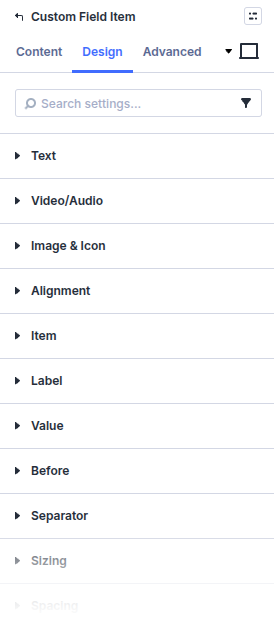
Choose the field under Content before styling it. The module uses the resolved field type to show only the relevant Design groups.
- Design → Item, Label, Value, Before, and Separator — Style the field wrapper and each text part independently.
- Design → Image & Icon and Alignment — Set icon color and circle treatment, image sizing, and module alignment. Some controls require Use Icon or a custom image under Content.
- Design → Relational Field List Item — Style simple lists produced by Post Object or Relationship fields.
- Design → Button — Appears for link, URL, email, and phone fields that can be rendered as buttons.
- Design → Video/Audio — Appears for supported media/file fields and controls player spacing, background, borders, and shadows.
Standard Divi sizing, spacing, borders, filters, transforms, and animation remain available. If a group is missing, confirm the selected field type and its Content settings first.
What is next
- Repeater module — Repeat a parent ACF repeater row and nest Custom Field Item modules for each sub-field
- Post Meta module — Surface native WordPress custom fields when you are not using ACF
- Divi Machine module overview — Full list of Divi Machine modules and how they fit together