Acc Wishlist Icon
This reference is for Divi 5. The same module and setting names exist in the Classic Builder. See Acc Wishlist Icon on Divi 4.
Purpose and when to use
Acc Wishlist Icon (divi-machine-account/wishlist-icon) lets a logged-in visitor add or remove the current post from a saved list or a dislike list. Its Divi 5 module picker label is Wishlist Icon. Place it where that post is shown, usually inside a Divi Machine loop layout.
List names come from Main settings. The icon only offers lists you defined there.
If a logged-out visitor clicks the icon, the plugin sends them to the account URL, where the assigned login layout is shown.
Before you configure this module
- Types of saved objects and, if you use them, Types of disliked objects are saved in Main settings.
- You are editing a loop layout, or another template that outputs a single post, in the Visual Builder.
Quick setup
- Add Acc Wishlist Icon from the Divi Machine Accounts folder.
- Set Choose the type to Saved Type or Dislike Type.
- Choose the list name.
- Turn on Use popup notification? if you want text while the post is added or removed. Otherwise the icon animates on its own.
- On the Design tab, set the Add Icon, In list Icon, and Adding Icon, then the icon box and alignment.
Content tab
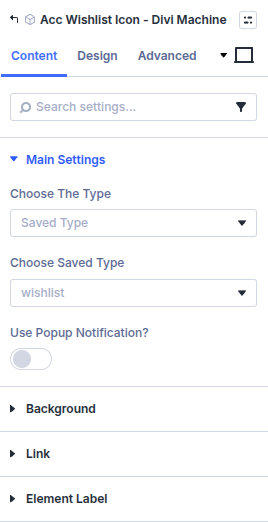
| Group | What it configures |
|---|---|
| Main Settings | Which list, and optional popup text |
| Background / Link / Admin Label | Standard Divi groups |
List
| Setting | Type | Default | Notes |
|---|---|---|---|
| Choose the type | select | Saved Type | Saved Type or Dislike Type |
| Choose saved type | select | wishlist | Shown for a saved type. Names come from Types of saved objects |
| Choose dislike type | select | dislike | Shown for a dislike type. Names come from Types of disliked objects |
| Use popup notification? | toggle | Off | Shows text while adding or removing |
Popup text
These fields appear only when Use popup notification? is on.
| Setting | Default | Shown for |
|---|---|---|
| Adding to list text | Adding to your list | Saved type |
| Added Success message text | Added to your list | Saved type |
| Adding to dislike list | Adding to hide list | Dislike type |
| Added to dislike list | Added to hide list | Dislike type |
| Delay after successful add/remove | 1500 | Both. Milliseconds before the notice closes |
| Removing from list text | Removing from your list | Both |
| Removed Success message text | Removed from your list | Both |
Design tab
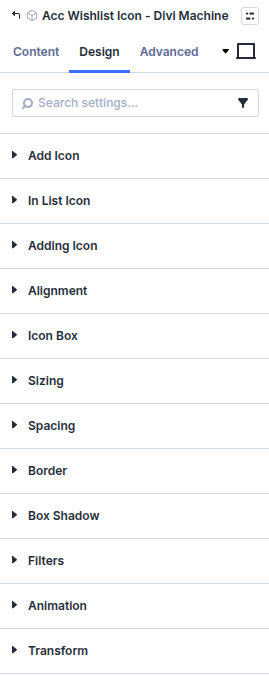
Icon choice, color, and size are on the Design tab.
| Group | What it configures |
|---|---|
| Add Icon | Icon, color, and optional size when the post is not on the list |
| In list Icon | Icon, color, and optional size when the post is already on the list |
| Adding Icon | Icon shown while the request is running. For a saved type you can set Adding Icon Rotation Speed (ms) (default 1000ms) |
| Alignment | Left (default), Center, or Right |
| Icon Box | Background, spacing, and border around the icon |
| Popup | Overlay, box background, text, and padding. Shown when Use popup notification? is on |
| Sizing, spacing, border, box shadow, filters, animation, transform | Module chrome |
Each icon group has the icon, color, hover color, and an optional font size (default 16px). Turn on the matching Use … Font Size toggle before the size control appears.
Show the saved posts
The icon stores the post. To list those posts on an account page, use Divi Machine Archive Loop. See Display a saved list.
What's next
- Main settings — List names and how multiple saved lists relate.
- Display a saved list