Account Page
What it is
The account area is where members see their plan, download invoices, update payment methods, switch plans, renew, or cancel. The plugin builds this for you; you only set the web address and how it looks.
Member account address (URL)
You choose the URL for the member area (it doesn’t have to be yourdomain.com/account).
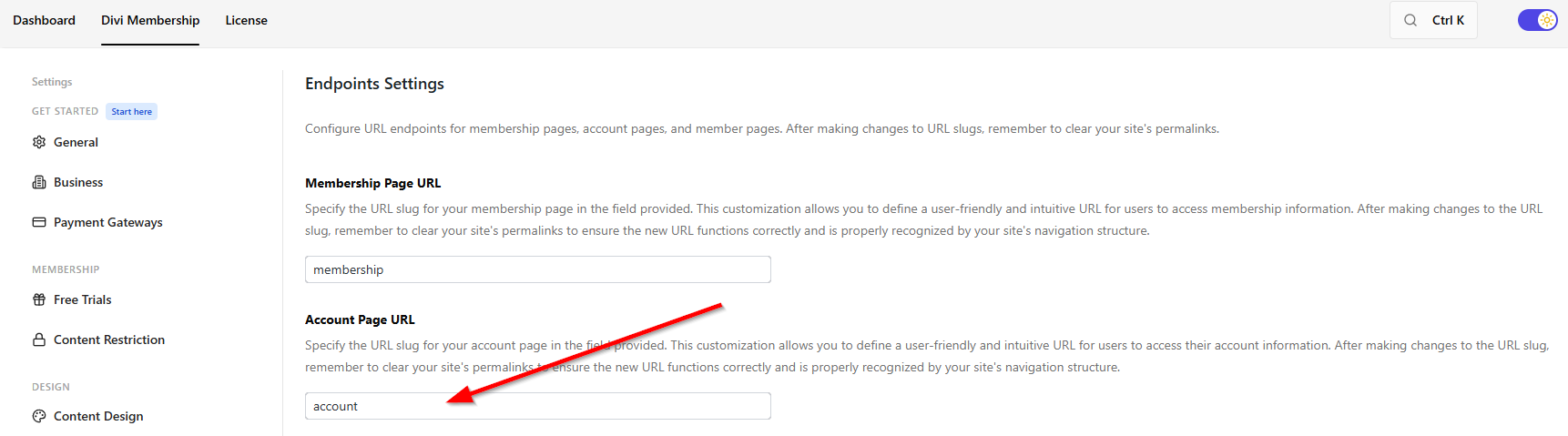
- Go to Divi Engine → Divi Membership → Endpoints.
- Set Account Page URL (e.g.
account). Members will useyoursite.com/account(or whatever you entered).
tip
If the account page doesn’t load, go to WordPress → Settings → Permalinks and click Save so WordPress updates the links.
What members see in the account
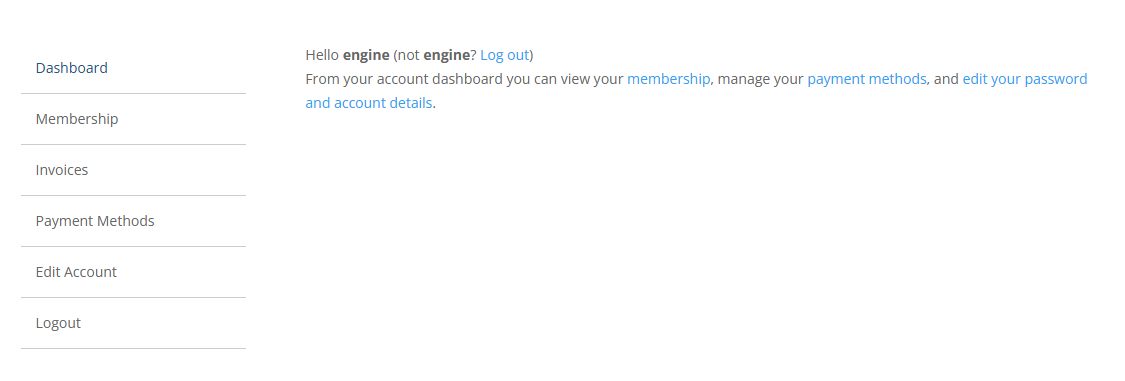
- Membership — Their current plan and payment info. They can cancel, switch plans (e.g. monthly to yearly, or to a different plan), resubscribe if they cancelled, and (with Stripe) add or remove saved cards.
- Invoices — Download PDF invoices for their payments. See Invoice generator to customize how invoices look.
- Payment methods — With Stripe, members can add a card, remove one, or set a default. With PayPal, they get a link to manage payment methods in their PayPal account.
- Edit account — Update name, email, address, and password.
Changing how the account looks
Go to Divi Engine → Divi Membership → Account Design. You can style:
- Navigation — The account menu and layout.
- Content — Text and general look.
- Tables — How the membership and invoice lists look.
- Inputs — Form fields.
- Buttons — Buttons like Renew, Cancel, Switch plan.
Switching plans (upgrade, downgrade, change billing)
Members can change their plan or how often they pay (Stripe):
- Same plan, different billing — e.g. from monthly to yearly.
- Different plan — Upgrade or downgrade to another plan.
- You can choose which plans show when they click “Switch plan” so they only see the options you want.
Resubscribing and cancelling
- Resubscribe — If someone cancelled, they can click Resubscribe in the account to start again (same as renewing).
- Cancel — Members cancel from the account. You can show a message with a “Keep my membership” option so they can back out without cancelling.
What's Next
- Invoice generator — Customize PDF invoices and design.
- Subscription management — Admin-side subscription actions and trial status.
- Settings — Where to find Endpoints, Account Design, and the rest of the settings.