Reporting
Purpose and when to use
The Membership Reports page gives you an overview of membership analytics, subscription trends, revenue breakdown, and trial conversions. Use it to track performance, spot trends, and export subscription data. Reports live under Divi Engine → Divi Membership → Reports (in the ADVANCED section of the Divi Membership menu), separate from the main Settings screens.
Where to find reports
- Go to Divi Engine → Divi Membership → Reports.
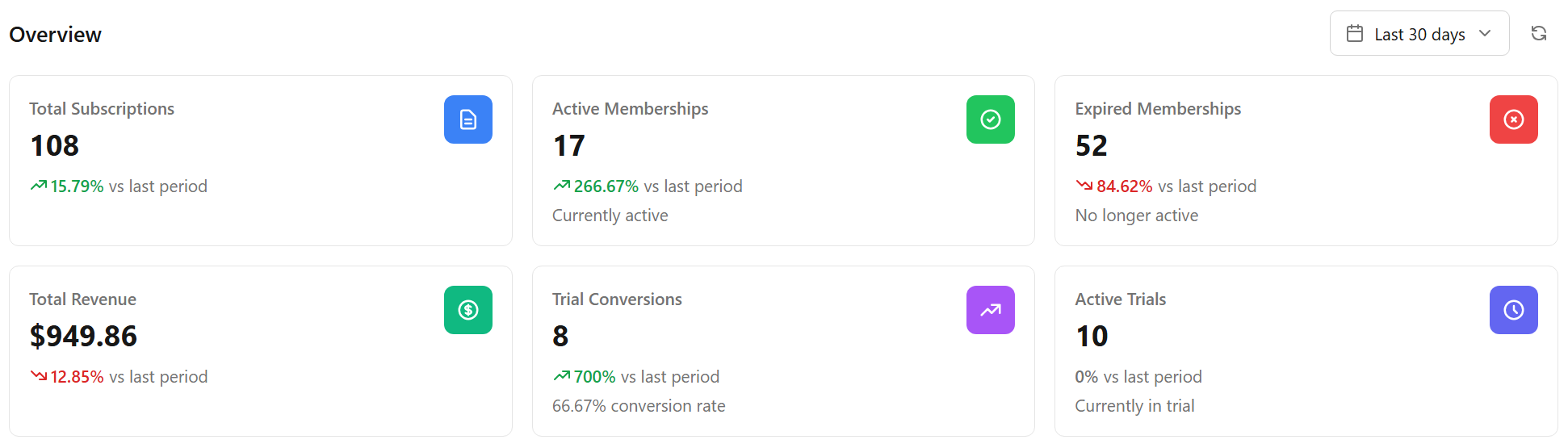
- The Membership Reports page opens with a date range selector (e.g. Last 30 days) and a refresh control at the top. All overview stats and charts respect the selected date range.
Overview cards
At the top of the page, six stat cards show key metrics and percentage change vs the previous period. Clicking a card can navigate to the related tab (e.g. Revenue → Revenue tab, Trial Conversions → Trial Analytics).
| Card | What it shows |
|---|---|
| Total Subscriptions | Count of subscriptions in the selected period; trend vs last period. |
| Total Revenue | Revenue in the selected period; trend vs last period. |
| Active Memberships | Currently active memberships; “Currently active.” |
| Expired Memberships | No longer active; “No longer active.” |
| Trial Conversions | Number of trials that converted to paid; shows conversion rate %. |
| Active Trials | Subscriptions currently in trial; “Currently in trial.” |
Charts and tables may show “No data for the selected period” or zero values when there is no activity in that range (e.g. no revenue, no gateway data, no trial conversions). Use a wider date range or check that payments and trials are being recorded correctly.
Report tabs
The page has five tabs:

Charts & Analytics
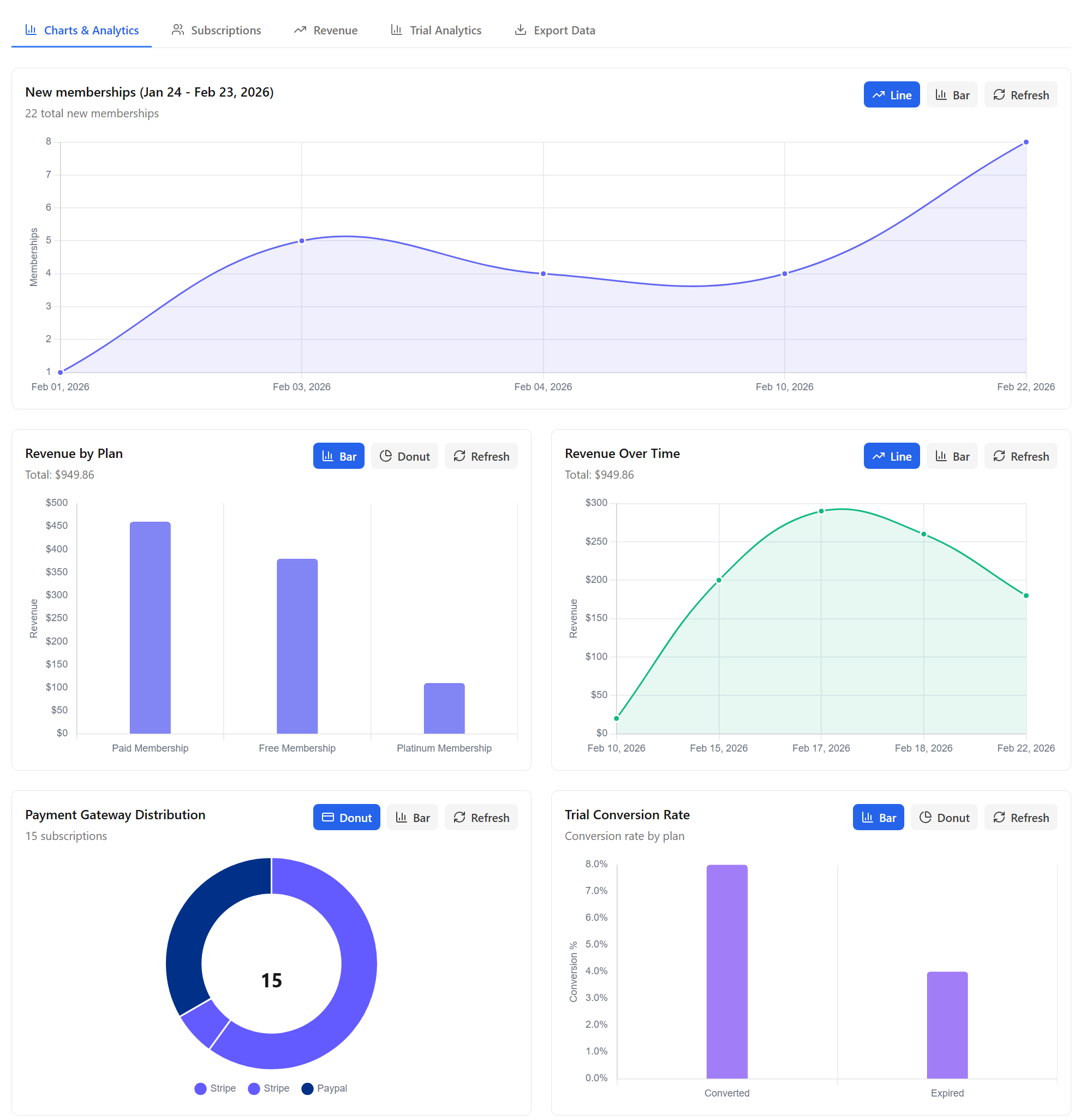
- New memberships — Line or bar chart of new memberships over the date range (e.g. “New memberships (Jan 24 – Feb 23, 2026)”). Toggle Line / Bar and Refresh as needed.
- Revenue by Plan — Bar or donut chart of revenue per membership plan. Shows “No revenue data for the selected period” when there is none.
- Revenue Over Time — Line or bar chart of revenue over time. Same “no data” message when empty.
- Payment Gateway Distribution — Donut or bar chart of revenue by payment gateway (e.g. Stripe, PayPal). Shows “No gateway data for the selected period” when empty.
- Trial Conversion Rate — Bar or donut chart of conversion rate by plan (e.g. Converted vs Expired). Empty when there is no trial data.
Each chart has Line / Bar or Bar / Donut toggles and a Refresh button. Chart type and date range drive what you see; if the period has no activity, charts stay empty.
Subscriptions
Table view of subscriptions with filters (e.g. by status) so you can drill into the list that backs the overview and charts.
Revenue
Revenue-focused view; use it together with the Total Revenue card and the Revenue by Plan / Revenue Over Time charts.
Trial Analytics
Trial-focused data; links from the Trial Conversions and Active Trials overview cards. Use it to see trial conversion and active trial counts in more detail.
Export Data
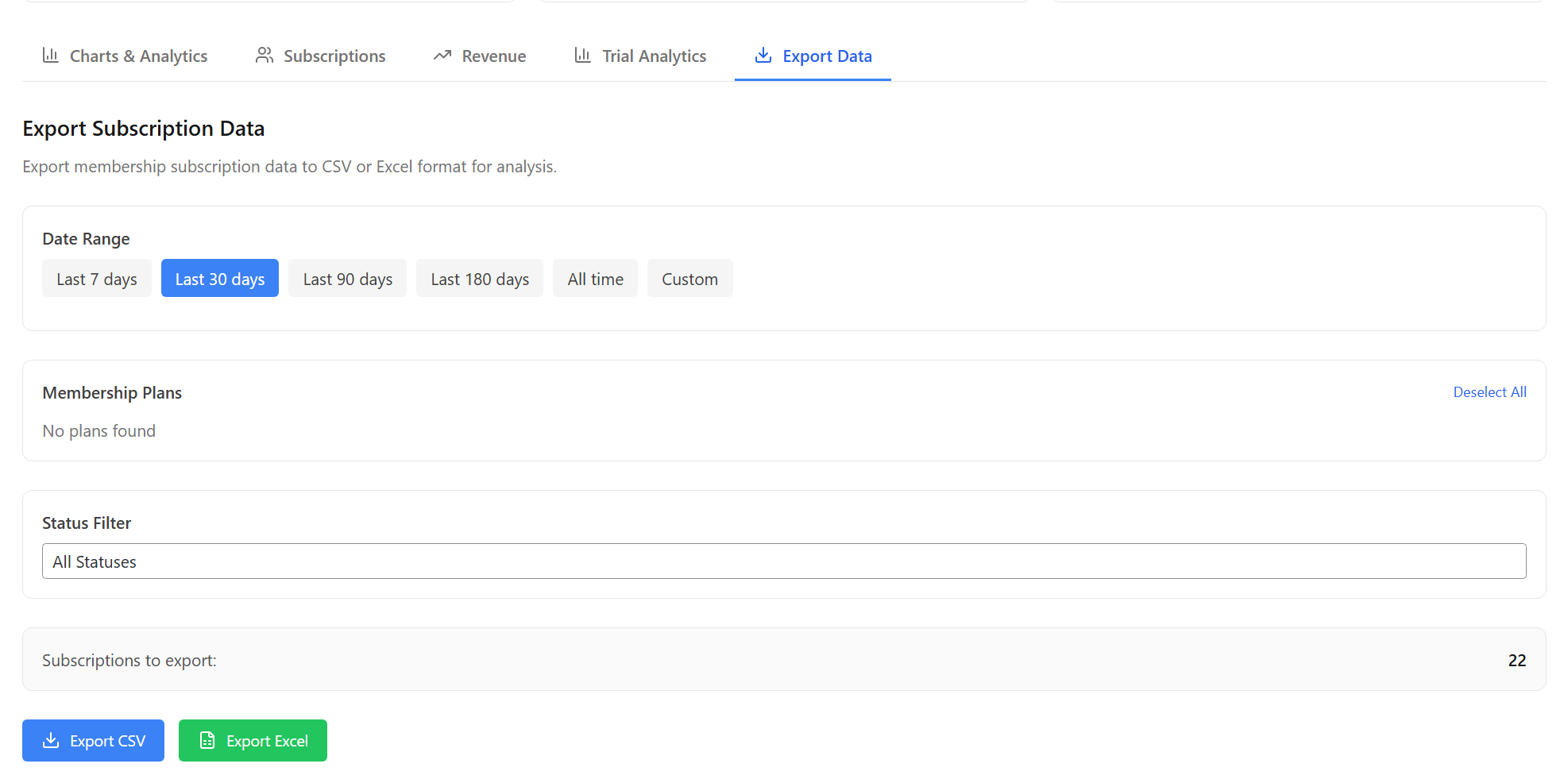
Export subscription data for the selected date range:
- Date range — Presets: Last 7 days, Last 30 days, Last 90 days, Last 180 days, All time, or Custom.
- Plan filter — Optionally limit to specific membership plans.
- Status filter — All, or filter by active, expired, cancelled, trial, etc.
- Format — CSV or XLSX.
Use Export to download the file for use in spreadsheets or other tools. The Coupons tab in Reports (or the Coupons list) may also offer CSV export for coupon usage where available.
What's Next
- Coupons — Create coupons and view usage; coupon reporting may appear in Reports or the Coupons area.
- Subscription management — Manage individual subscriptions in the admin.
- Free trials — Configure trials; trial conversion and active trials appear in Reports.