Payment Gateways
Purpose and when to use
Divi Membership supports Stripe (v3 with Stripe Elements and multiple payment methods) and PayPal. Stripe can run in v3 (default) or Stripe Legacy (v2). Choose Legacy only if you need the older flow or billing address collection at checkout; otherwise use v3 for the modern checkout experience.
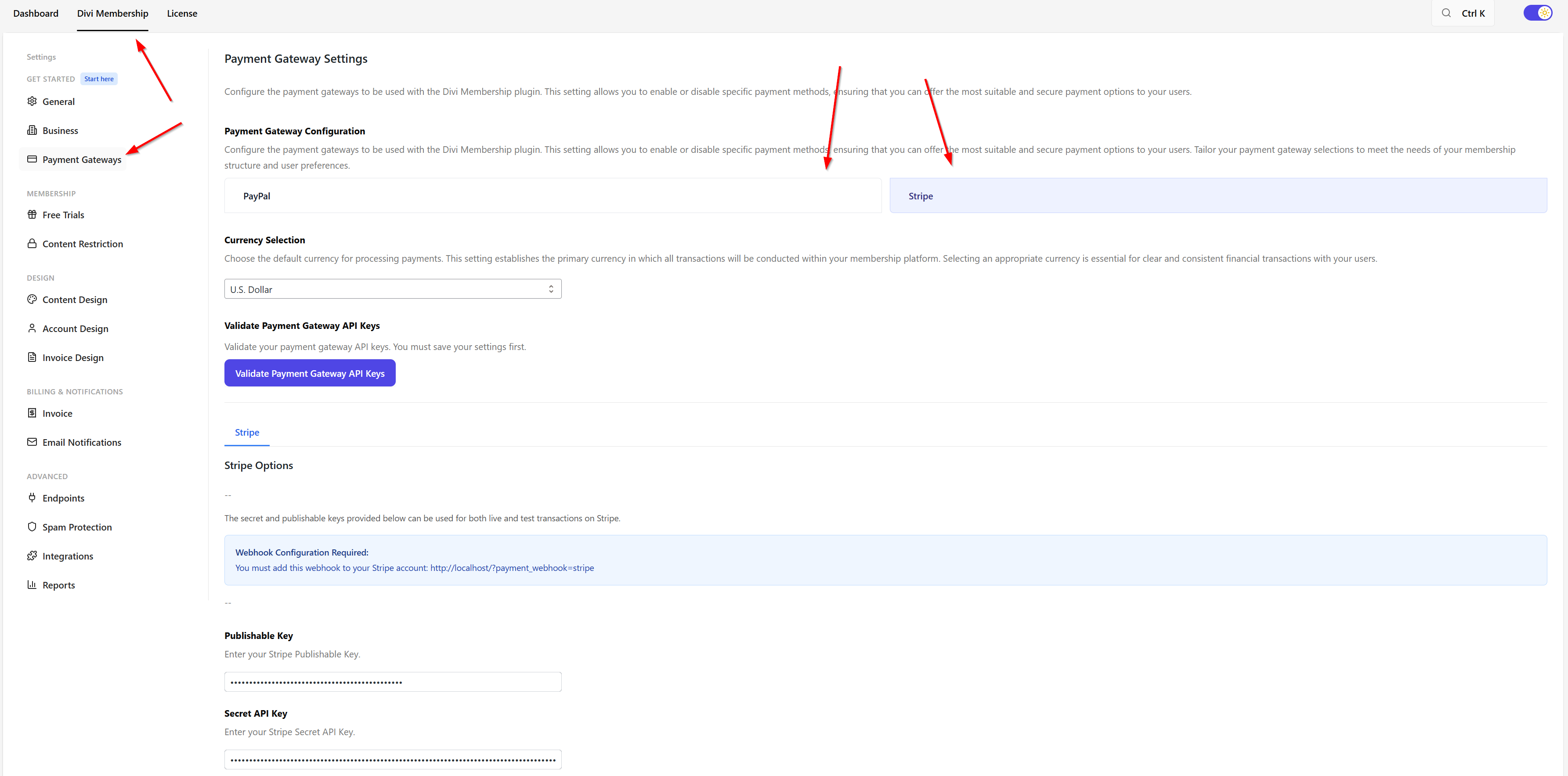
Where to configure
Go to Divi Engine → Divi Membership → Payment Gateways. Enter your Stripe and/or PayPal credentials. The plugin validates keys (e.g. pk_/sk_ for Stripe); fix any validation errors before saving.
Stripe v3 (default)
- Uses Stripe Elements for card input.
- Supports multiple payment methods (e.g. Klarna, iDEAL, Revolut Pay) where available.
- Billing address is not shown at checkout by default. The checkout form stays minimal.
Stripe Legacy (v2)
- Enable Stripe Legacy Mode in Divi Engine → Divi Membership → Payment Gateways (e.g. “Enable Stripe Legacy Mode?”).
- When Legacy is on, billing address is collected at checkout.
- Use Legacy only if you need the older Stripe integration or must collect billing address during signup.
Card management in the account
With Stripe (v3 or Legacy), members can manage saved payment methods from their account: add a new method, remove a card, and Make Default. See Account page for the member-facing behaviour.
PayPal
Configure PayPal in the same Payment Gateways section. Members manage their PayPal payment methods via their PayPal account; the plugin links them there from the account area.
What's Next
- Account page — Where members add, remove, and set default payment methods.
- Free trials — Trials with Stripe and PayPal.
- Settings — Full list of settings including Payment Gateways.