Acc Navigation
This reference is for Divi 5. The same module and setting names exist in the Classic Builder. See Acc Navigation on Divi 4.
Purpose and when to use
Acc Navigation (divi-machine-account/navigation) prints the logged-in account menu: a button for the dashboard, a button for every other account page, and a logout button. Its Divi 5 module picker label is Navigation in the Divi Machine Accounts folder.
Place it on the account post chosen as Define your navigation layout. Activation already places one on the Navigation account post. The navigation layout is shown with the dashboard and with other account pages. It is not the login page.
The module does not list the navigation, dashboard, or login posts as extra links. The dashboard button goes to the account URL. Each additional Account post becomes its own button. Notifications, Messages, and Search Alerts stay out of the menu until that feature is turned on, even when the layout is published. Profile and pages you add yourself stay in the menu. See Custom endpoints.

Before you configure this module
- Layout settings point at the navigation, dashboard, and login posts.
- You are editing the navigation account post in the Visual Builder.
Quick setup
- Add Acc Navigation, or select the one already on the Navigation account post.
- Set Logout Text (default Logout).
- Turn on Show notification count if one menu item should show the unread count. Choose that item under Notification count item. Notifications must be enabled in Notification settings.
- On the Design tab, set Button Alignment, style Button for the default state, and style Active Button for the current account page.
Content tab
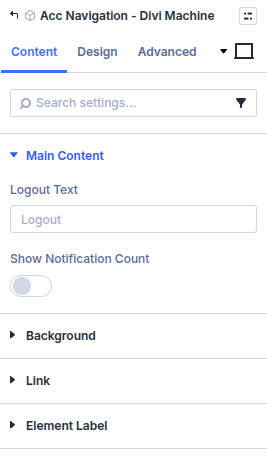
| Group | What it configures |
|---|---|
| Main Content | Logout label and the unread count |
| Background / Link / Admin Label | Standard Divi groups |
Core settings
| Setting | Type | Default | Notes |
|---|---|---|---|
| Logout Text | text | Logout | Label on the logout button |
| Show notification count | toggle | Off | Unread count on one account item. Hidden unless notifications are on |
| Notification count item | select | Notifications | Which menu item gets the count. Shown when the toggle above is on |
The other labels come from the account post titles. Rename the post to change the button.
Design tab
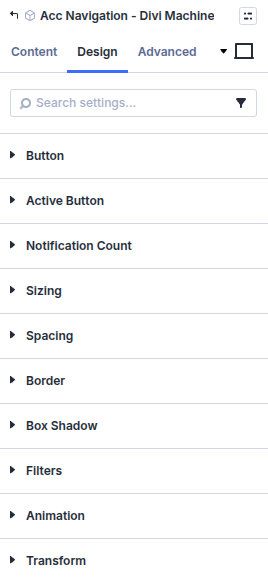
| Group | What it configures |
|---|---|
| Button | Default navigation buttons, including alignment, the dashboard, and logout |
| Active Button | The button for the account page currently open |
| Notification count | Background, count text, size, spacing, border, and shadow of the unread badge |
| Sizing, spacing, border, box shadow, filters, animation, transform | Module chrome |
The dashboard button uses the normal Button styles. Active Button applies to the other account page that matches the current URL.
What's next
- Custom endpoints — Add pages that show up in this menu.
- Layout settings