Acc User Icon
Divi 5 only
Acc User Icon is a Divi 5 module. There is no Classic Builder version.
Purpose and when to use
Acc User Icon is the account control for a header. Logged-in members see an icon or their profile photo, an optional unread count, and a dropdown with their name, email, recent notifications, and links. Logged-out visitors can see a Sign in link.
Place it in the header. Placement can move it into the Divi Menu, or leave it in the column where you added it.
In the Visual Builder, clicking the icon hides or shows the dropdown preview so it does not cover other content.
Before you configure this module
- The account URL is set. See Main settings.
- Turn on notifications if the dropdown or the count should list them. The icon still works for sign in, account, and log out when notifications are off.
Quick setup
- Add Acc User Icon from Divi Machine Accounts in the header.
- Set Placement to Inside the Divi Menu or In this column.
- Leave Open dropdown as Click, or choose Hover. Touch and keyboard users can always use click.
- Leave Show notification count on if you want the unread badge.
- Hide any dropdown section you do not want: name, email, notifications, or the footer links.
Content tab
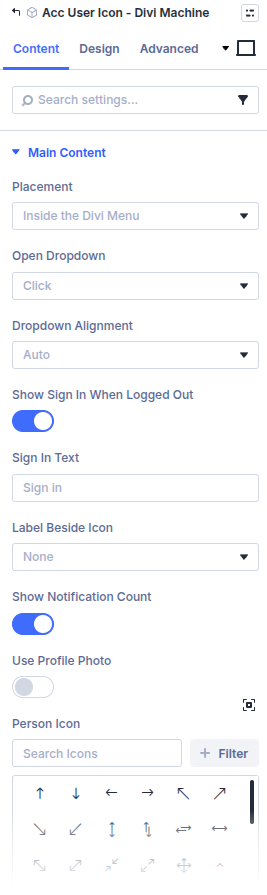
Main Content
| Setting | Type | Default | Notes |
|---|---|---|---|
| Placement | select | Inside the Divi Menu | Inside the Divi Menu or In this column |
| Open dropdown | select | Click | Click or Hover |
| Dropdown alignment | select | Auto | Auto, Left, or Right. Auto avoids the edge of the screen |
| Show Sign in when logged out | toggle | On | Turn off if the header already has a login link |
| Sign in text | text | Sign in | Shown when the toggle above is on |
| Label beside icon | select | None | None, Display name, or Email |
| Show notification count | toggle | On | Unread count on the icon. Needs notifications turned on |
| Use profile photo | toggle | Off | Uses the member's profile photo. Members without one get a grey placeholder |
| Person icon | icon | Person | Shown unless Use profile photo is on, and beside Sign in for visitors |
Name and Email
| Setting | Default | Notes |
|---|---|---|
| Show name | On | Display name at the top of the dropdown |
| Show email | On | Email under the name |
Notifications
| Setting | Type | Default | Notes |
|---|---|---|---|
| Show notifications | toggle | On | Recent notifications inside the dropdown |
| Number of notifications | number | 5 | How many to show. Range 1–10. Shown when notifications are on in the dropdown |
| Show notification message | toggle | On | The notification text under the title |
| Show notification time | toggle | On | When the notification was added |
| Empty notifications text | text | No notifications yet. | Shown when the member has none |
Footer Links
| Setting | Type | Default | Notes |
|---|---|---|---|
| Link layout | select | Horizontal | Horizontal or Vertical list |
| Show View all link | toggle | On | Opens the Notifications account page |
| View all text | text | View all | |
| Show Account link | toggle | On | Opens the account area |
| Account text | text | Account | |
| Show Log out link | toggle | On | |
| Log out text | text | Log out |
Design tab
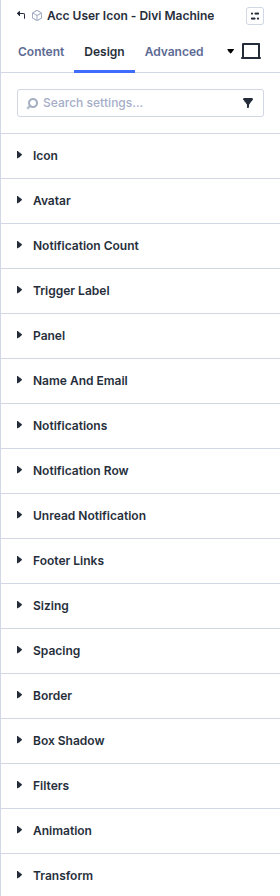
| Group | What it configures |
|---|---|
| Icon | The person icon |
| Avatar | The profile photo |
| Notification count | The unread badge |
| Trigger label | Text beside the icon, and the gap between icon and label |
| Panel | The dropdown, including distance from the icon |
| Name and email | The identity block |
| Notifications | The notification list in the dropdown |
| Notification row | One notification |
| Unread notification | A notification that has not been opened |
| Footer links | Link alignment and the space between links |
| Sizing, spacing, border, box shadow, filters, animation, transform | Module chrome |
What's next
- Notifications — Turn the feature on and place the icon.
- Acc Notifications — The full list in the account area.